Help › Money, Bookie and your look
Add your logo and colour
Put your logo and accent colour on your booking page and emails.
OwnerPaid plansBefore you start
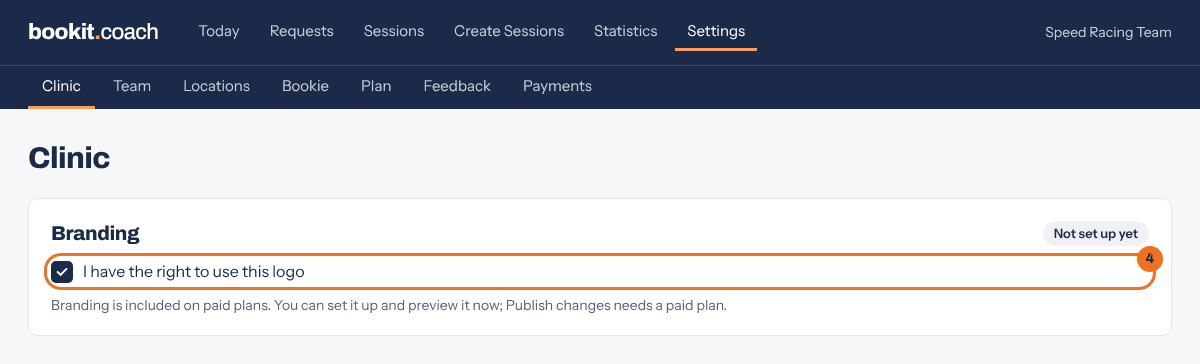
Branding is included on paid plans. You can set it up and preview it on any plan, but Publish changes needs a paid plan.
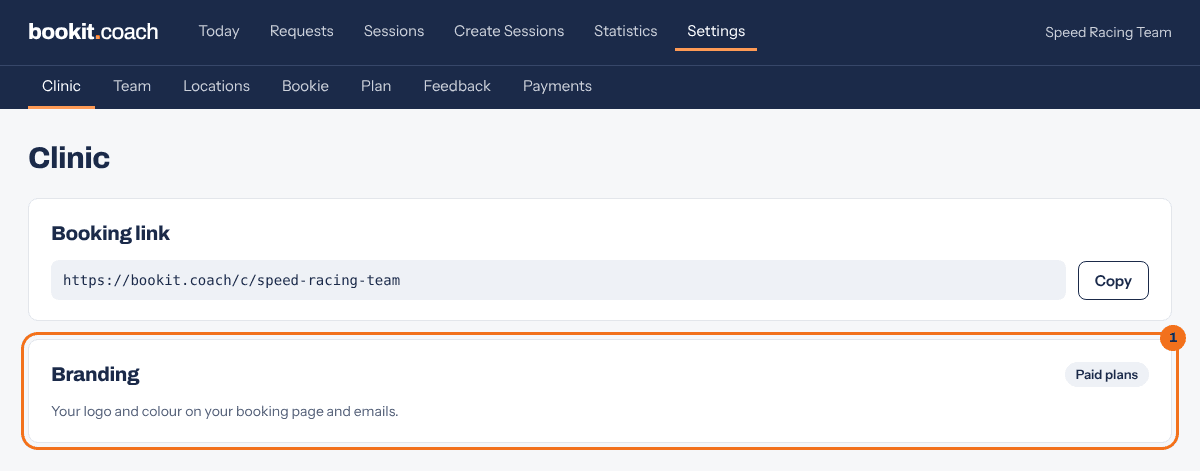
- Open Settings › Clinic and scroll to Branding.
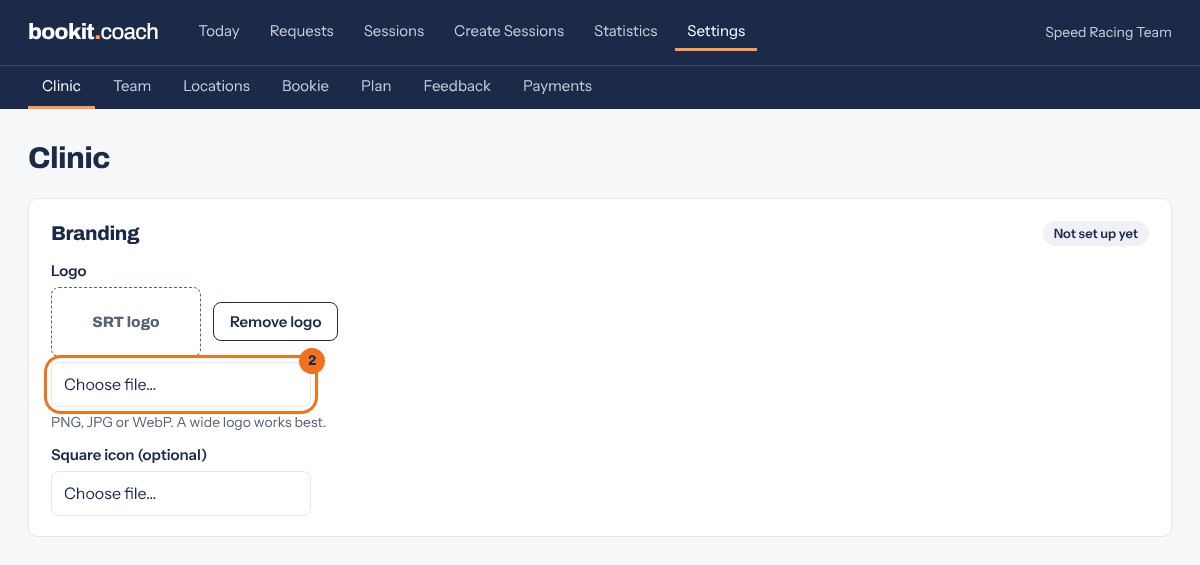
- Under Logo, choose your logo file. You can also add a Square icon (optional).
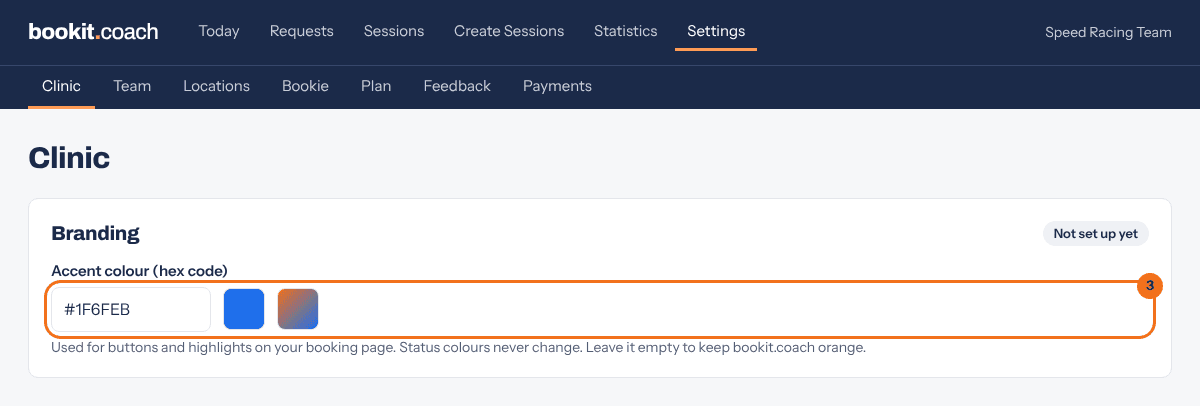
- Enter your Accent colour (hex code), like #F2711C, or pick one with the colour picker. Leave it empty to keep bookit.coach orange.
- Tick I have the right to use this logo.
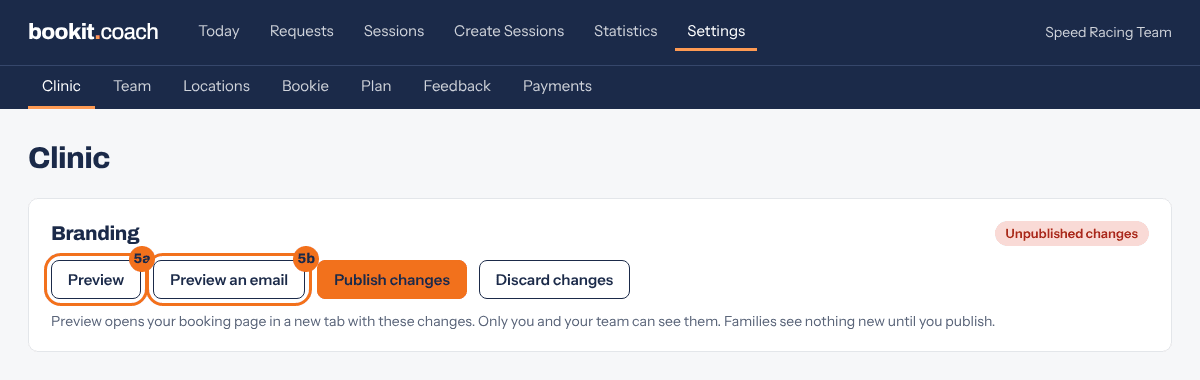
- Press Preview to see your booking page in a new tab, and Preview an email to see a sample email to a family. Only you and your team see these.
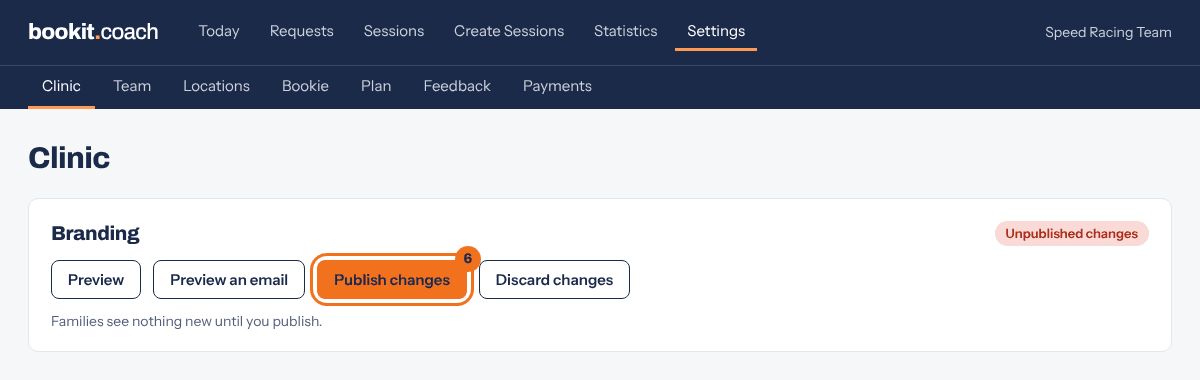
- When you are happy, press Publish changes. Families see nothing new until you do.
Good to know
- The accent colour is used for buttons and highlights on your booking page. Status colours (paid, owing, cancelled) never change.
- The status next to Branding says Not set up yet, Unpublished changes or Published. Discard changes puts back what is published.
- To remove a logo or icon, press Remove logo or Remove icon, then preview or publish.
Still stuck? Write to hello@bookit.coach. Last checked 16 November 2026.