Help › Getting started
Add your locations
Add each place you run sessions, choose a default and keep the details families see up to date.
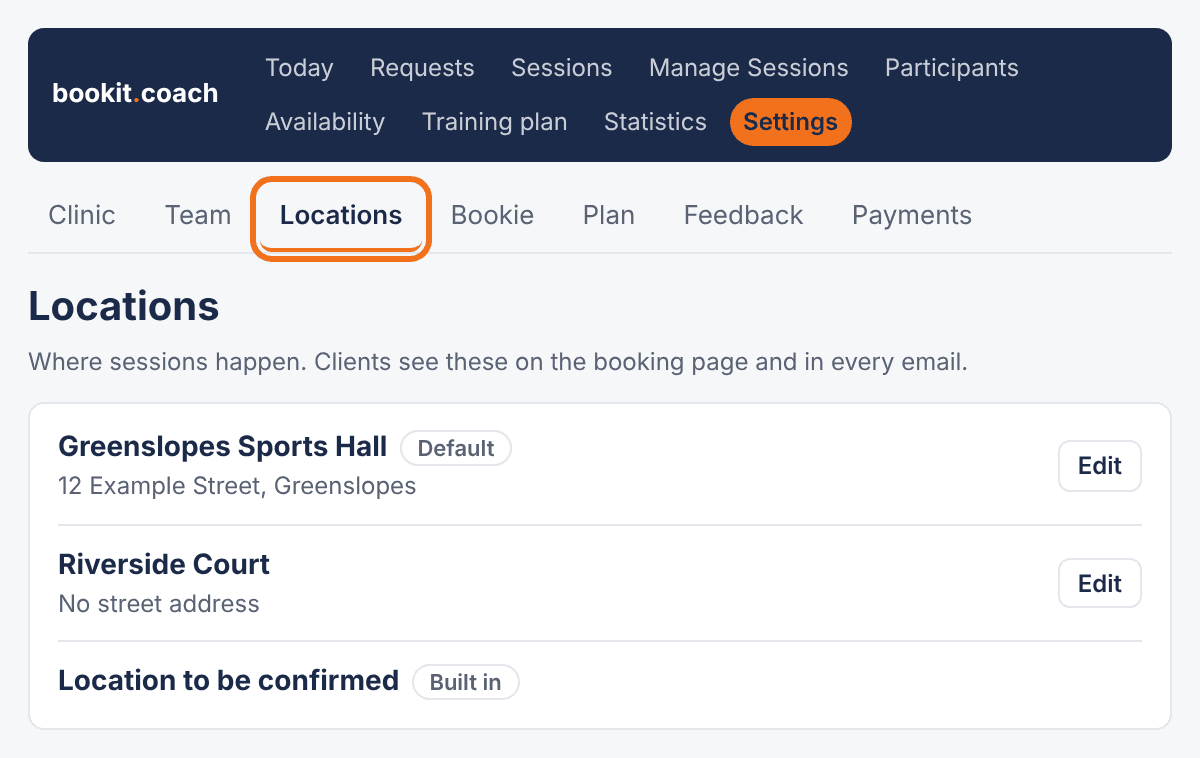
OwnerAdmin- Open Settings › Locations.
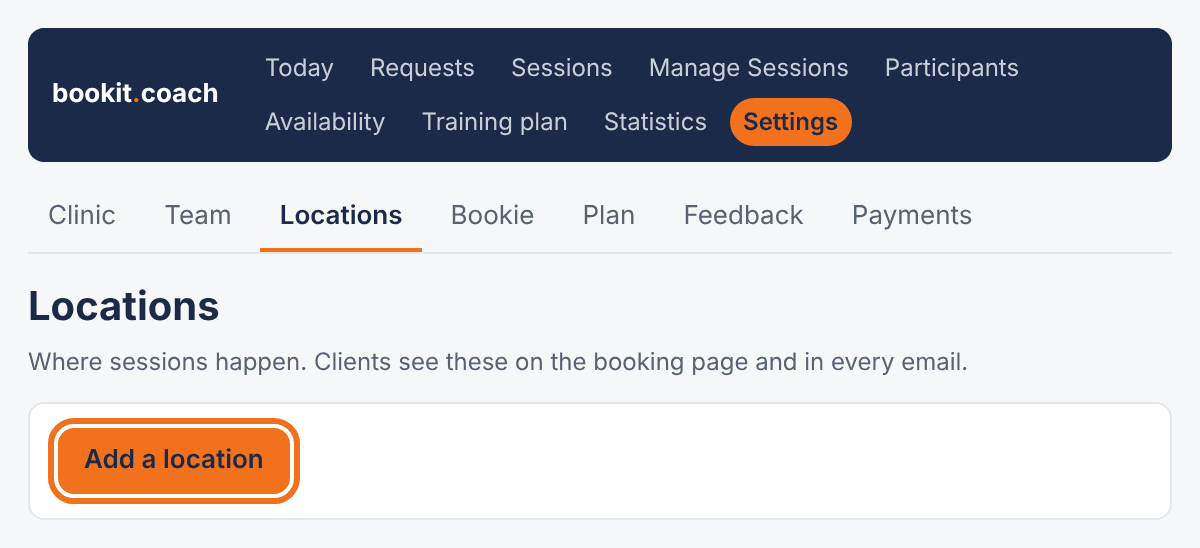
- Press Add a location.
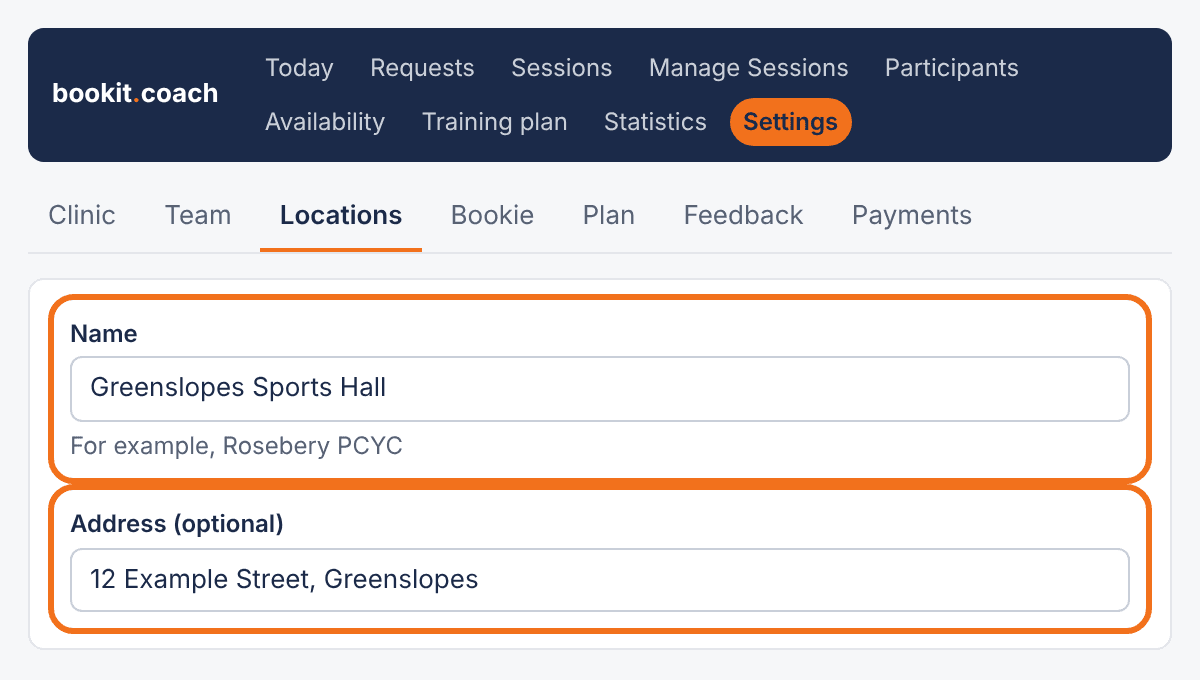
- Type the Name families will recognise, such as a court or hall. Add the Address (optional), so families get a map link.
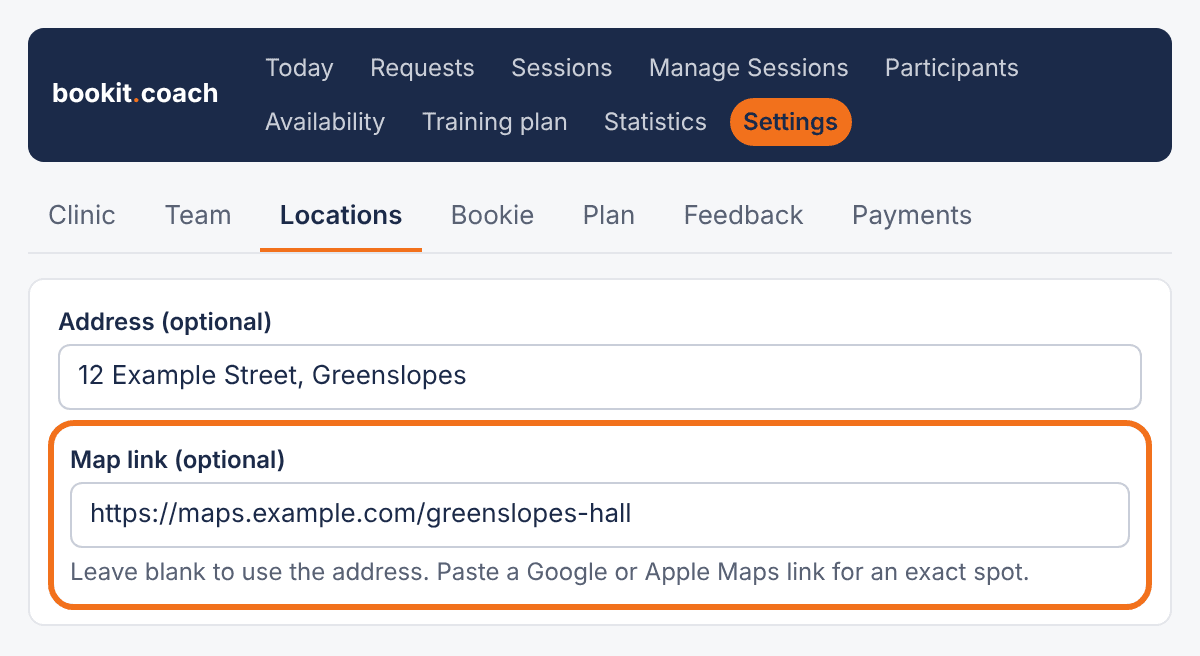
- If you have an exact spot, paste a Google or Apple Maps link in Map link (optional). Leave it blank to use the address.
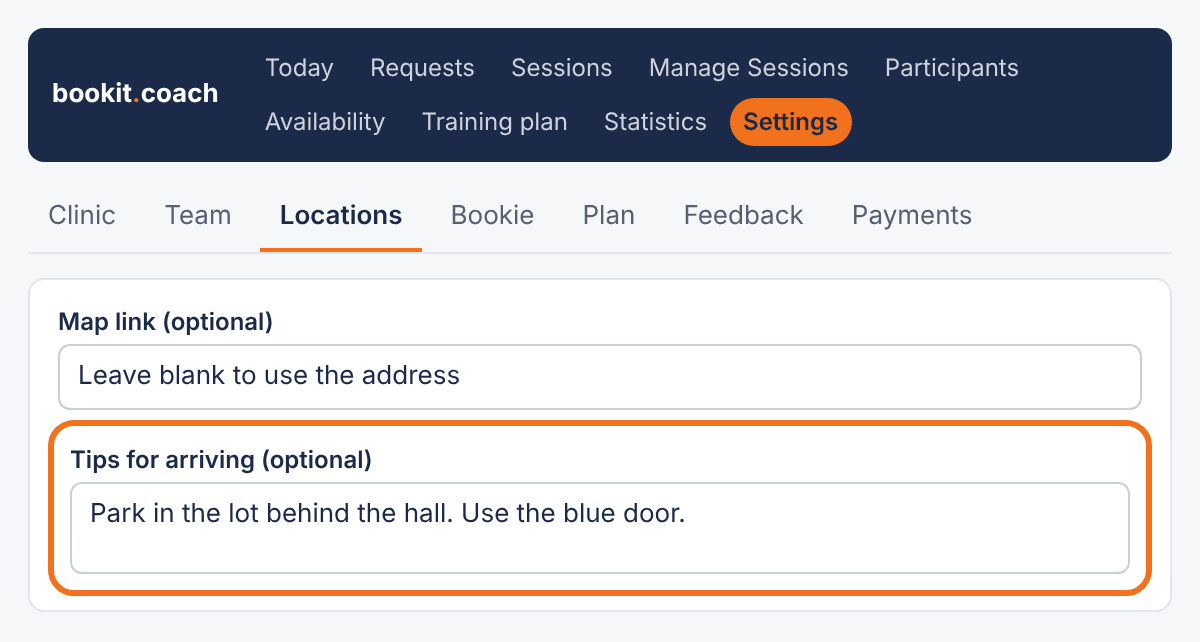
- Add Tips for arriving (optional), such as where to park or which door to use.
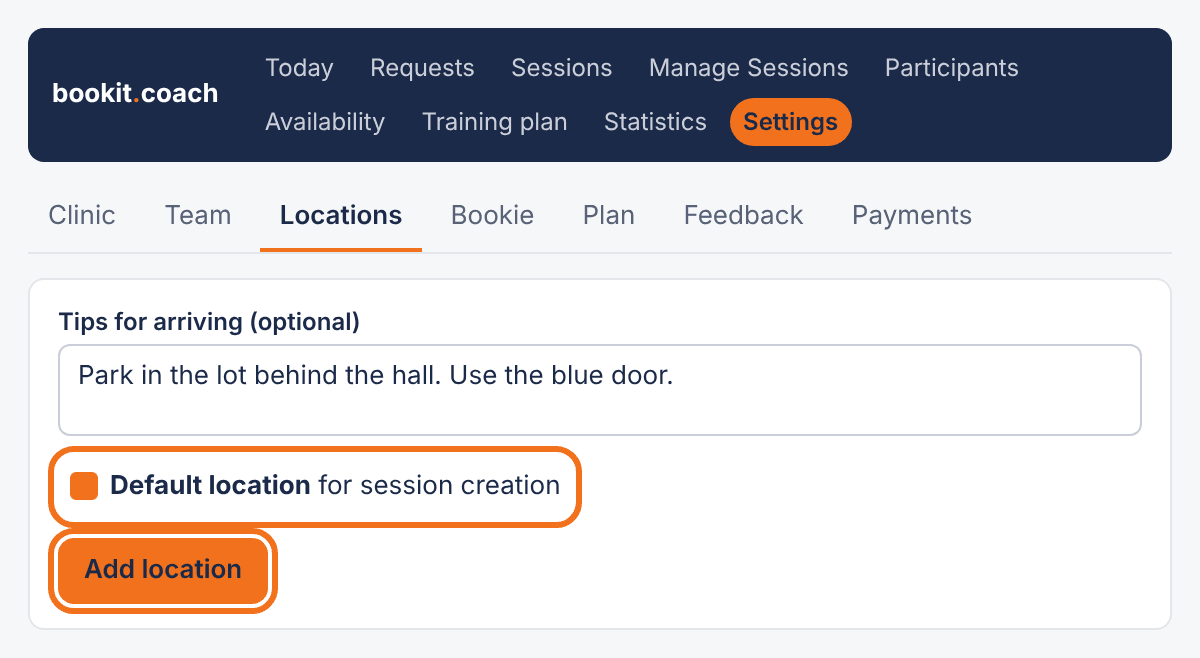
- The owner can tick Default location to have it filled in whenever a session is created. Press Add location.
- Choose the Location type: Venue, Online or Client's place. Only venues are checked for two sessions at once. For a venue, set Spaces: how many sessions can run there at the same time, such as 4 for four courts. It starts at 1.
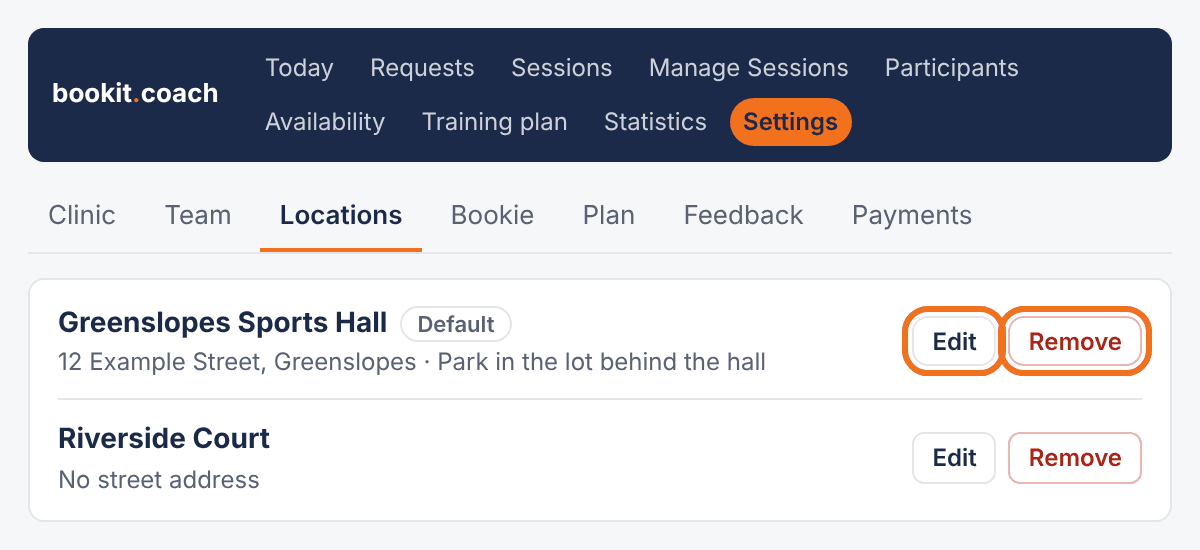
- To change a location later, press Edit beside it, then Save. To take one away, press Remove.
- To close one location for a day or more, press Edit beside it, then add the First day, Last day and a Name under Closed dates for this location, such as Court resurfacing.
Good to know
- Families see locations on your booking page and in every email about their session.
- If you change a location's name, address or tips, the families who have a booking there are emailed the change.
- Location to be confirmed is built in. Use it when a venue is not settled yet. It cannot be edited or removed.
- Removing a location keeps it on past sessions. You cannot remove the default location, or one your weekly hours still use. Make another the default, or move those hours first.
- Only the owner can change which location is the default.
- Spaces only ever warns your team. When you create or move a session that would take a venue over its Spaces, the orange Check before you save box says so, and you can still save. Families are never stopped by it.
- Closed dates for a location work like a coach's leave. Families aren't offered times at that location on those days, but the coach's other locations still show. Your team sees a warning and can still add a session. Sessions already booked there are listed with links, and nothing is cancelled for you.
Still stuck? Write to hello@bookit.coach. Last checked 25 November 2026.