Help › Sessions and people
Create a session or a weekly series
One-off or recurring, group or one on one, public or private.
OwnerAdminBefore you start
Add at least one location first. Every session needs one.
- Open Manage Sessions and press Create a session.
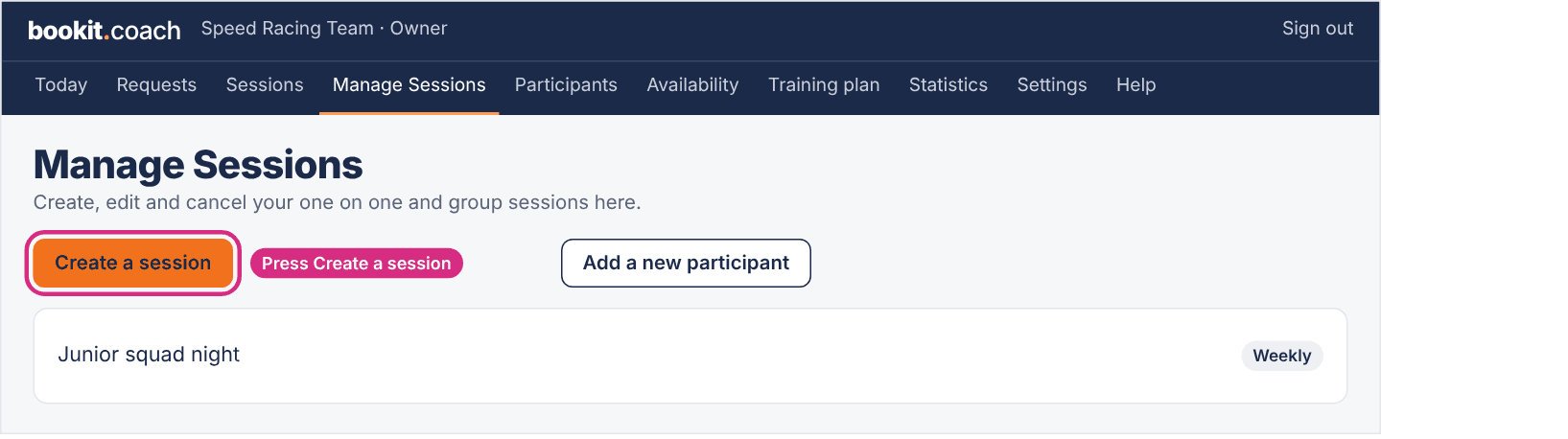
- The form has five sections: Details, Booking, Cancelling and makeups, Payment and Training plan. Press a section's title to open it and the others fold away. Details starts open. Press Next at the bottom of a section to open the next one, and Back to go to the one before (the first section has Next only and the last has Back only). You can also press a section's title to open it, or the title again to close it. The same buttons are in the Edit box, a series' settings and the calendar's side panel. The notes about closed dates, public holidays, a busy location and a coach who can't make a date (Coach Unavailable) appear when you press Next or Back after changing a date, time, day, number of weeks, coach, location or length, not while you type. They never stop you saving. If a save is refused, the message shows beside the Create button and the section with the problem opens.
- In Details, type a Title, for example Junior squad night. Choose the Type (Group Session or One on one), the Length, the Main coach, the Location, the date and the start time.
- For a weekly series, tick Recurring, choose the days under On these days and how many weeks under Repeat for. A line under them says when the series Ends.
- If a date falls on a closed date, or is a time the coach can't do, Check before you save lists it with the reason (the closed date's name, or Coach Unavailable). Skip these dates is ticked by default, so those dates are left out. Untick it to create closed dates anyway; a date the coach can't do then goes to the clinic's owner.
- Open Booking. Under Who can find it, choose Public to list the session on your booking page, or Private to keep it off the page. Only people you send a private session's link to can join it. Bookings close says how late families can join: leave it on Clinic setting to follow Settings › Clinic, or choose a time for this session or series only. For a group, set the Group size, then choose When the group is full: Keep taking bookings (the size is only a guide) or Stop bookings (families can't join once every place is taken). Leave it on Clinic setting to follow Settings › Clinic. You and your team can still add people to a full session.
- Open Payment and enter a Price ($), or leave it empty if it is free. For a group the price is per participant. For a weekly series with a price, How families can pay appears under the price (owners and admins, paid plans): tick the ways to pay you want to offer. Pay per session is ticked to begin with.
- Open Cancelling and makeups. Families can cancel works the same way: Clinic setting, or the last time families can cancel this session or series online. A setting of its own shows an Own Setting pill beside the field and on the section. For a one on one, Offer automatic makeups is ticked by default, and new times are offered from the coach's time block hours. On a paid plan, Training plan links a plan to a weekly series.
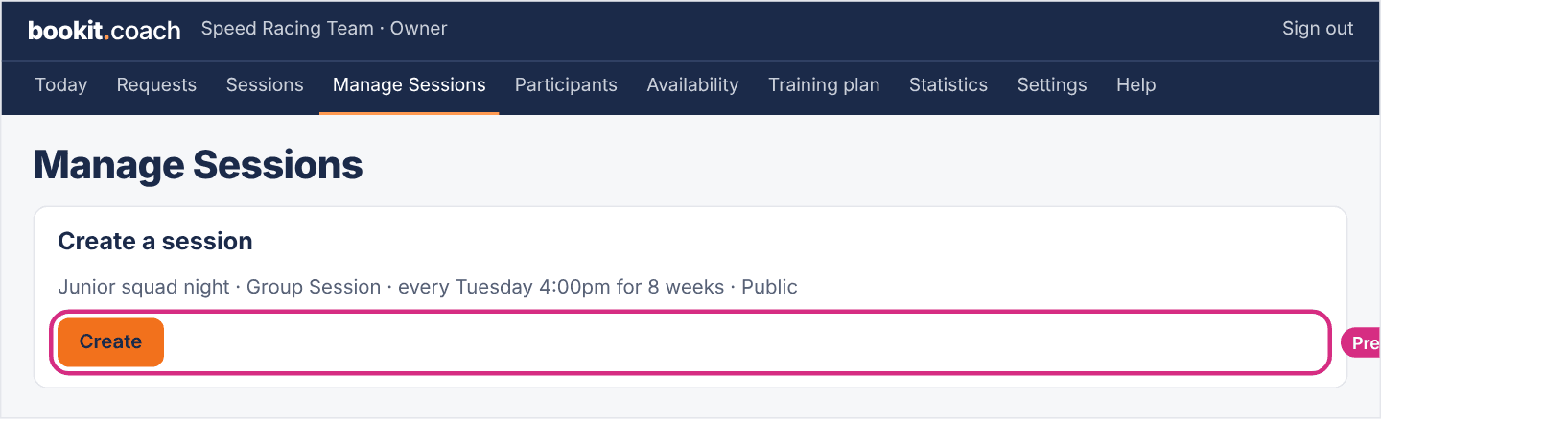
- Press Create.
Good to know
- Group size is a guide until you choose Stop bookings under When the group is full. Then families can't join a full session or date: it comes off the booking page (a link to it still opens and says it is full), and a full date of a series is left out of its dates. Choose Stop bookings and open a waiting list (paid plans) to keep it on the page with Join the waiting list instead; see Run a waiting list. You and your team can always add people over the size.
- A weekly series can run for up to 20 weeks.
- The series keeps its own copy of the training plan.
- A session's link is in its popup on Sessions, on the Link line: press Copy. It is hidden once the session has started.
- If the coach already has a session at that time, a box shows what it overlaps. An owner or admin can press Book anyway and say why (the coach is emailed); anyone else is asked to pick another time. For a weekly series you can also give the clashing dates to the owner or leave them out.
- If a date you pick is a public holiday in your state, a grey note says so (for example "Tue 26 Jan is Australia Day, a public holiday in Queensland."). It is only a note. A weekly series gets one note listing its holiday dates.
Still stuck? Write to hello@bookit.coach. Last checked 28 November 2026.