Help › Getting started
Set up your clinic in ten minutes
Name your clinic, add locations, weekly hours, your first session, your team and participants, then share your booking link.
OwnerBefore you start
Sign up at bookit.coach and create your clinic. Every new clinic starts on the Clinic plan free for 30 days, no card needed.
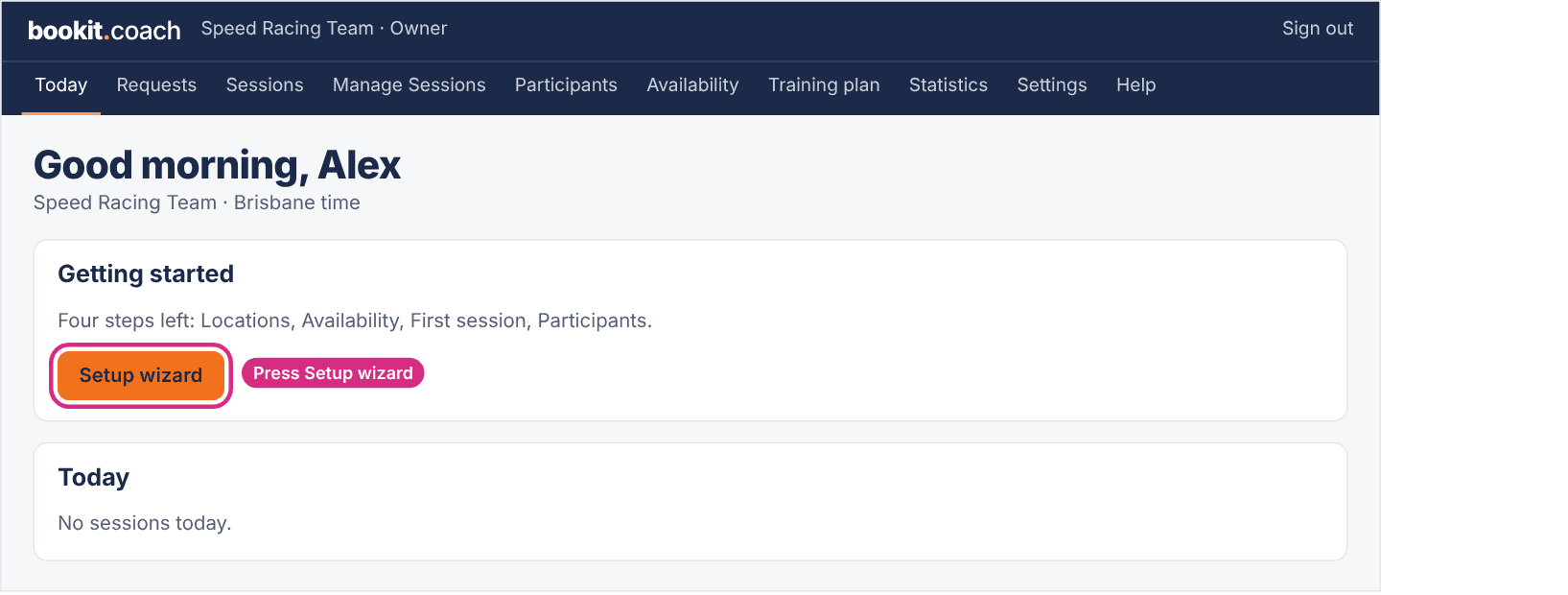
- Your clinic: after sign-up you land on this step. Enter your clinic name, your booking link (you can't change it later), your state and an ABN if you have one. Choose Just me or Me and other coaches. Under Booking rules choose how close to the start participants can book and cancel (2 hours to start) and whether Automatic makeup classes are on. Under Extras switch Bookie and WhatsApp notifications on or off. Press Create clinic. You can change all of this later in Settings › Clinic, except the booking link. Just me or Me and other coaches is changed in Settings › Team. The wizard then walks you through Locations, Availability, First session, Your team (only if you chose Me and other coaches), Participants and Share your link. You can skip a step and come back to it. Press Setup wizard on Today to open it again.
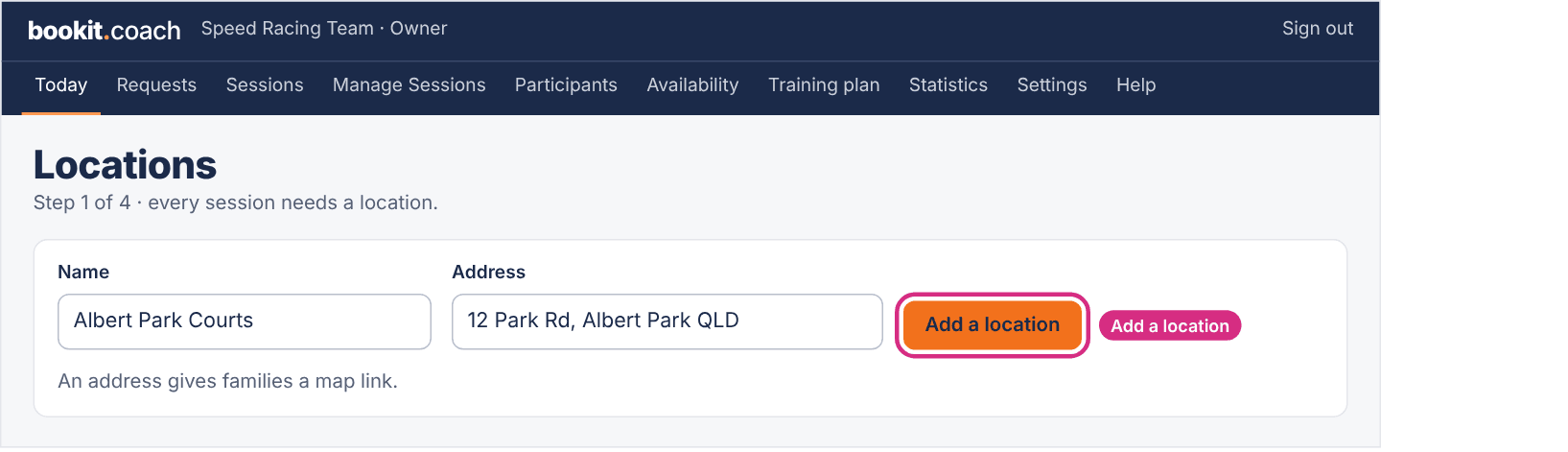
- Locations: add each place you run sessions. Every session needs a location, and families see it when they book. An address gives them a map link.
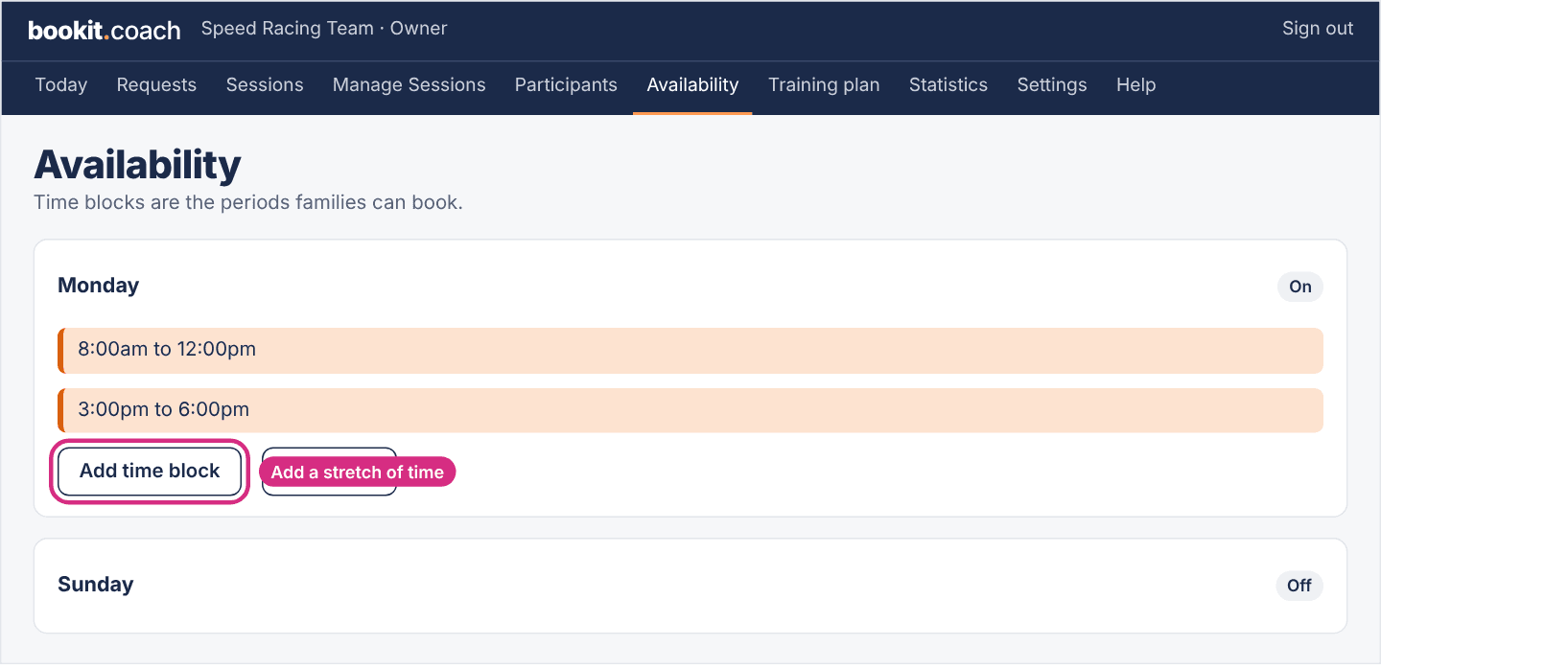
- Availability: on each day you coach, press Add time block for a stretch of time, such as a morning, then add another for the afternoon. Families can book only inside your time blocks. Switch a day off if you do not coach that day. Copy to… copies one day's blocks to other days.
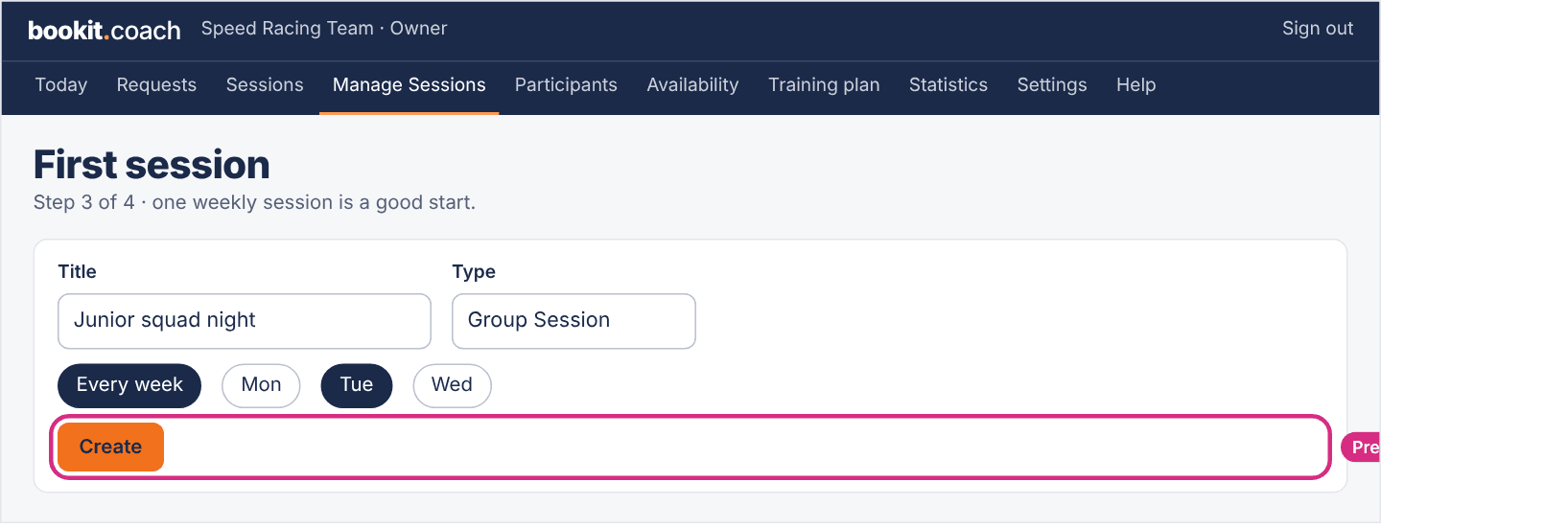
- First session: create your first session. The Details section is open and the other four (Booking, Cancelling and makeups, Payment, Training plan) are closed until you need them. One recurring session is a good start, and you can add more later. The guide on creating a session has every field.
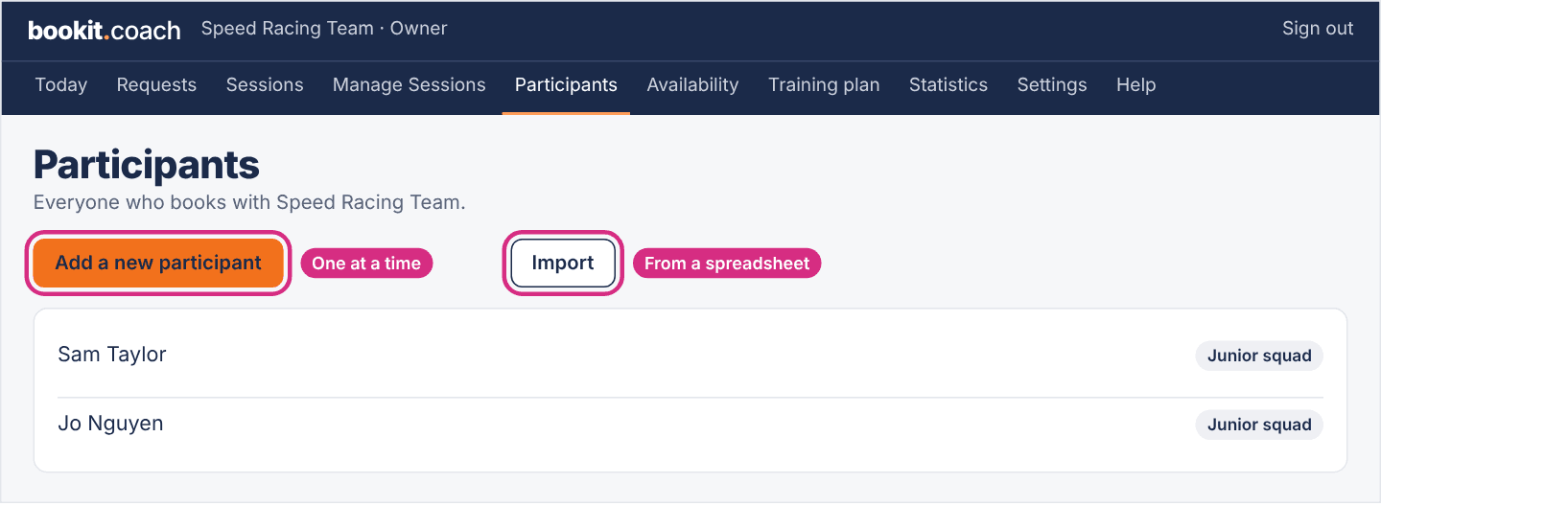
- Your team (only if you chose Me and other coaches): invite coaches and admins by email. Each one gets a link, their own sign-in and their own schedule. You can skip it and invite them later in Settings › Team. Participants: add people one at a time, or import a spreadsheet using the import template. They are emailed, and you can put them on sessions from the Participants page.
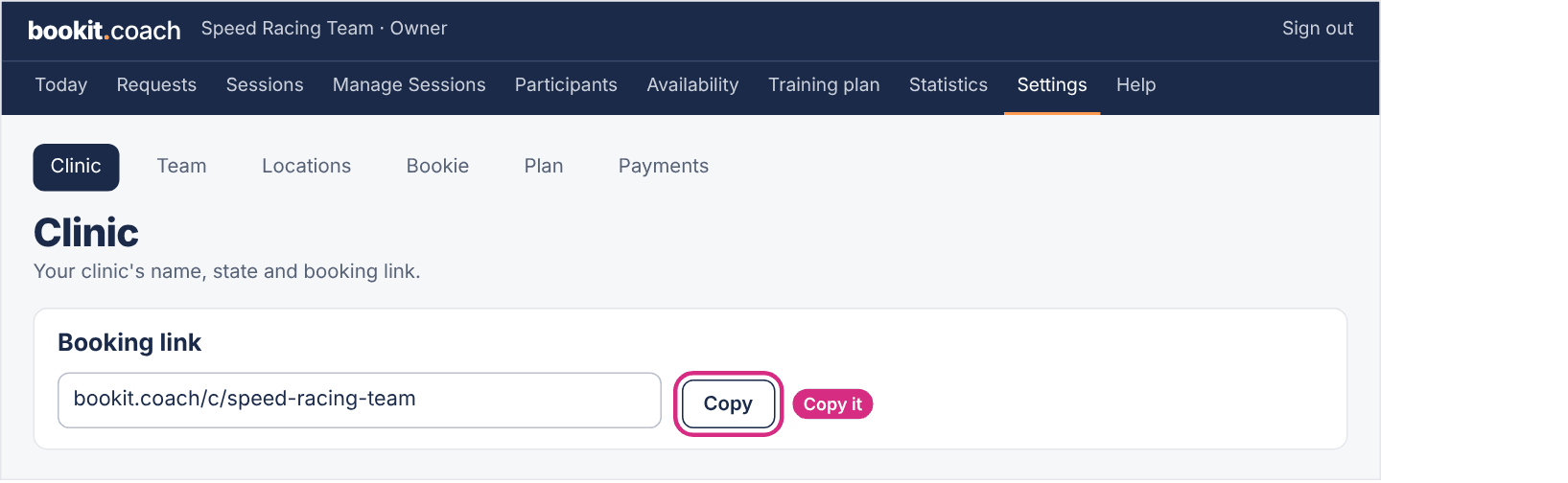
- Share your link: the last step shows your booking link with a Copy link button, and a list of what you set up. A step you skipped shows as skipped with a Do it now button. Press Finish and open Today. The link is always in Settings › Clinic. Participants open it, choose a session and join.
Good to know
- Finish your main set-up on Today lists the same steps as the wizard and disappears once every step is done. Choosing Just me leaves out the team step and the invite item, so the list can always be finished.
- More you can set up at the bottom of Today lists card payments, your logo and colour, session credits and training plans. They are optional. Press Hide this list to hide it; the owner can bring it back in Settings › Clinic.
- Booking rules for every session, makeup classes and Bookie are also in Settings › Clinic. Both cutoffs start at 2 hours before the session. When a group is full is there too: Keep taking bookings (today), Stop bookings or, on paid plans, Stop bookings and open a waiting list. A session or series can set its own under Booking and Cancelling and makeups; Settings › Clinic shows how many upcoming sessions have.
- Owners and admins have a round Bookie button at the bottom right of every page. Ask it how any step works.
Still stuck? Write to hello@bookit.coach. Last checked 28 November 2026.