Help › Getting started
Set your weekly hours and time off
Choose the days and times families can book you, and add leave when you are away.
OwnerAdminCoachBefore you start
Add at least one location first, in Settings › Locations. Every time block needs one.
- Open Availability. You see your own week. Owners and admins can pick another coach from the Coach menu to set that coach's hours.
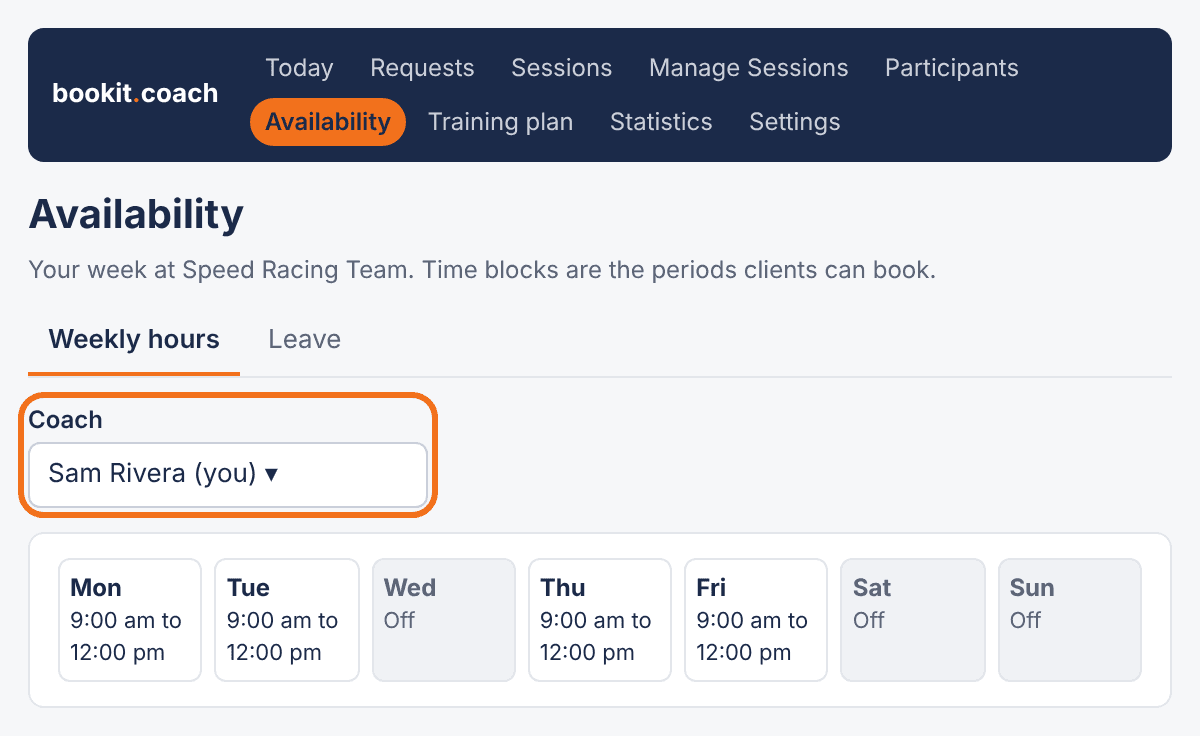
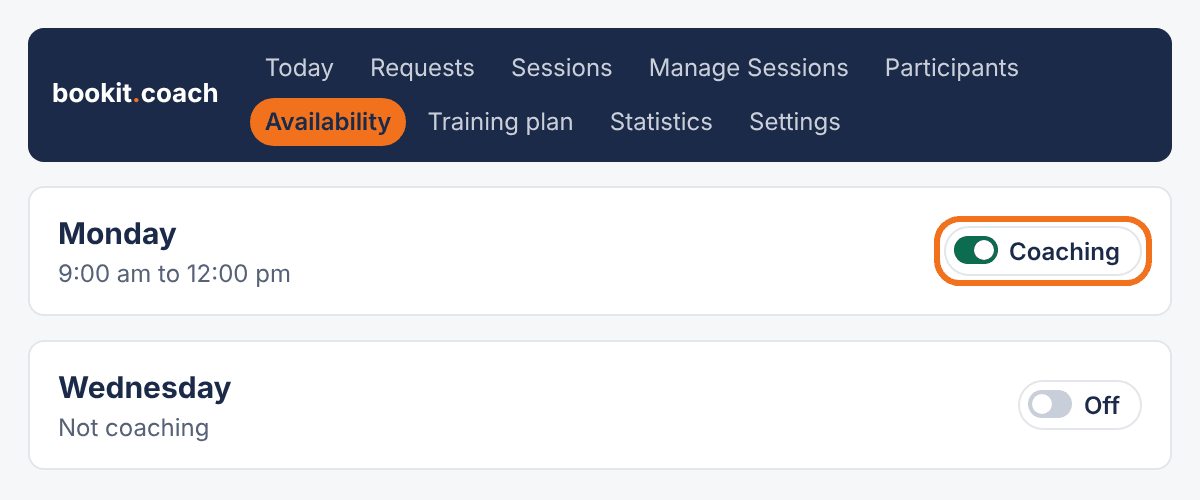
- Find the day you coach. Make sure its switch says Coaching. Press it to switch a day Off when you do not coach that day.
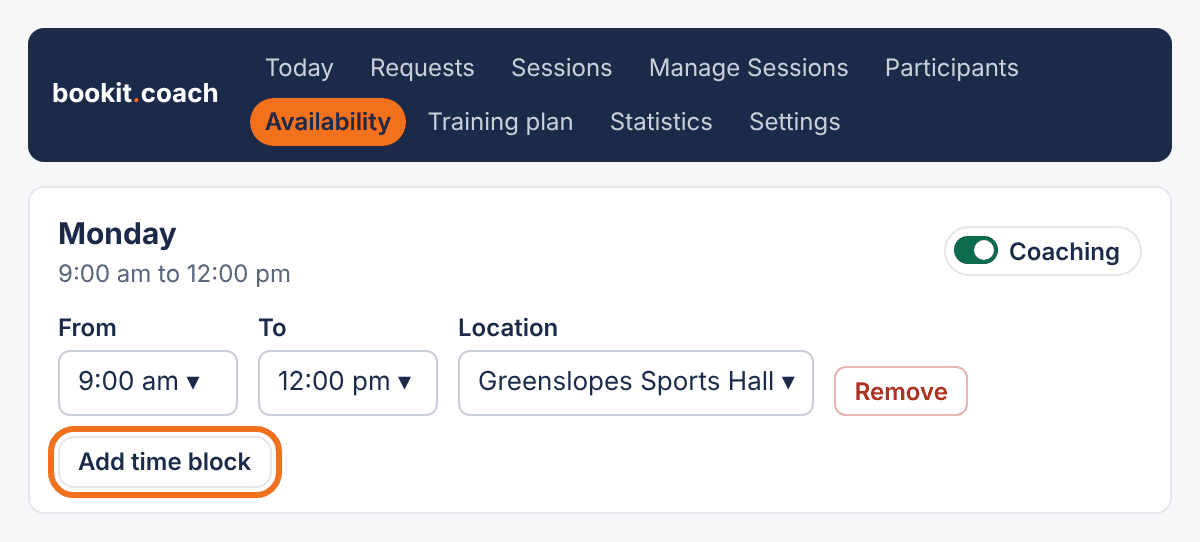
- Press Add time block for a stretch of time, such as a morning. Choose its From and To times and its Location. It saves as you change it.
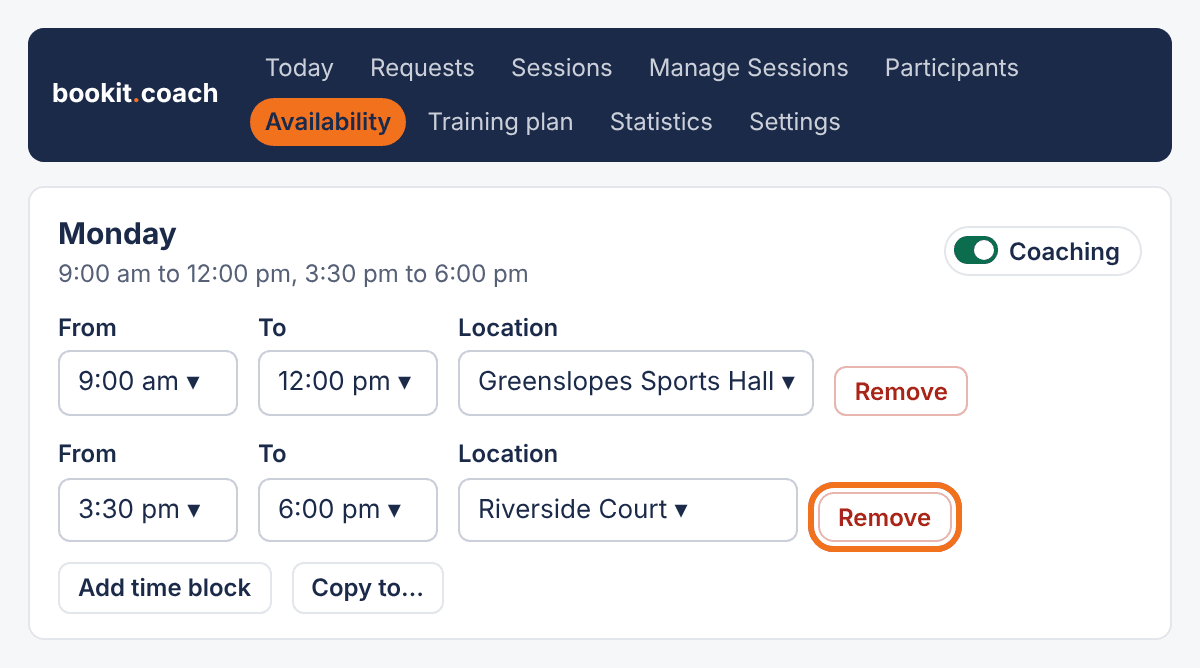
- Add another block for the afternoon, or any other stretch. To remove a block, press Remove beside it.
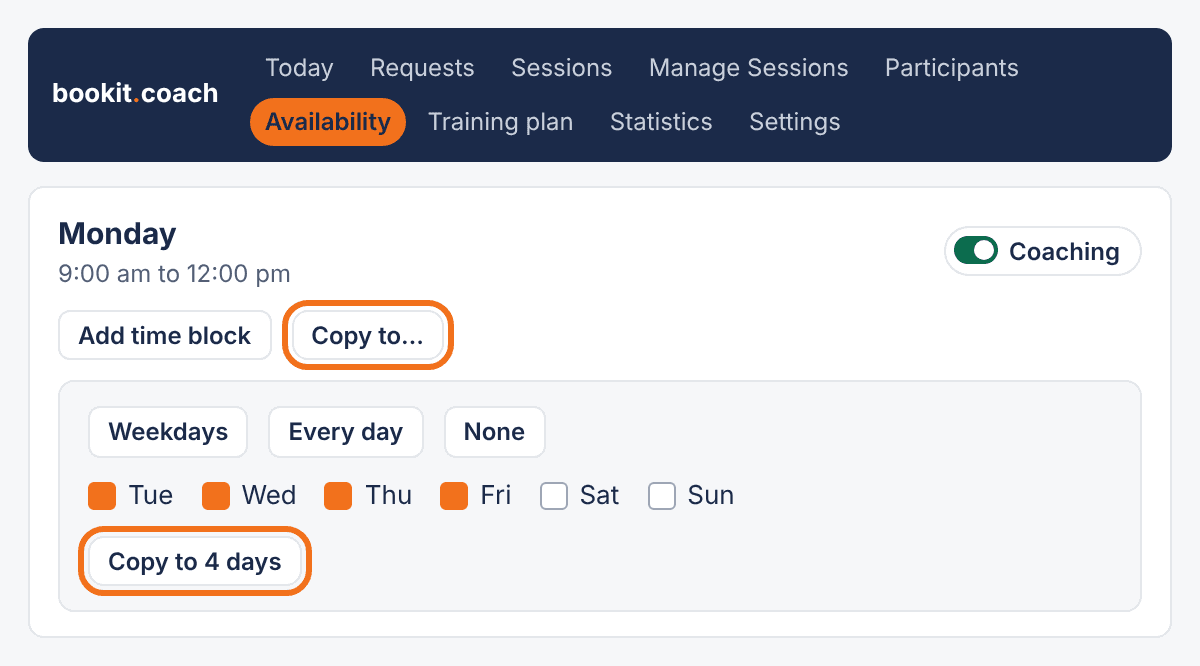
- To use the same blocks on other days, press Copy to… on a day that is set up. Choose Weekdays, Every day or pick days, then press the Copy to button.
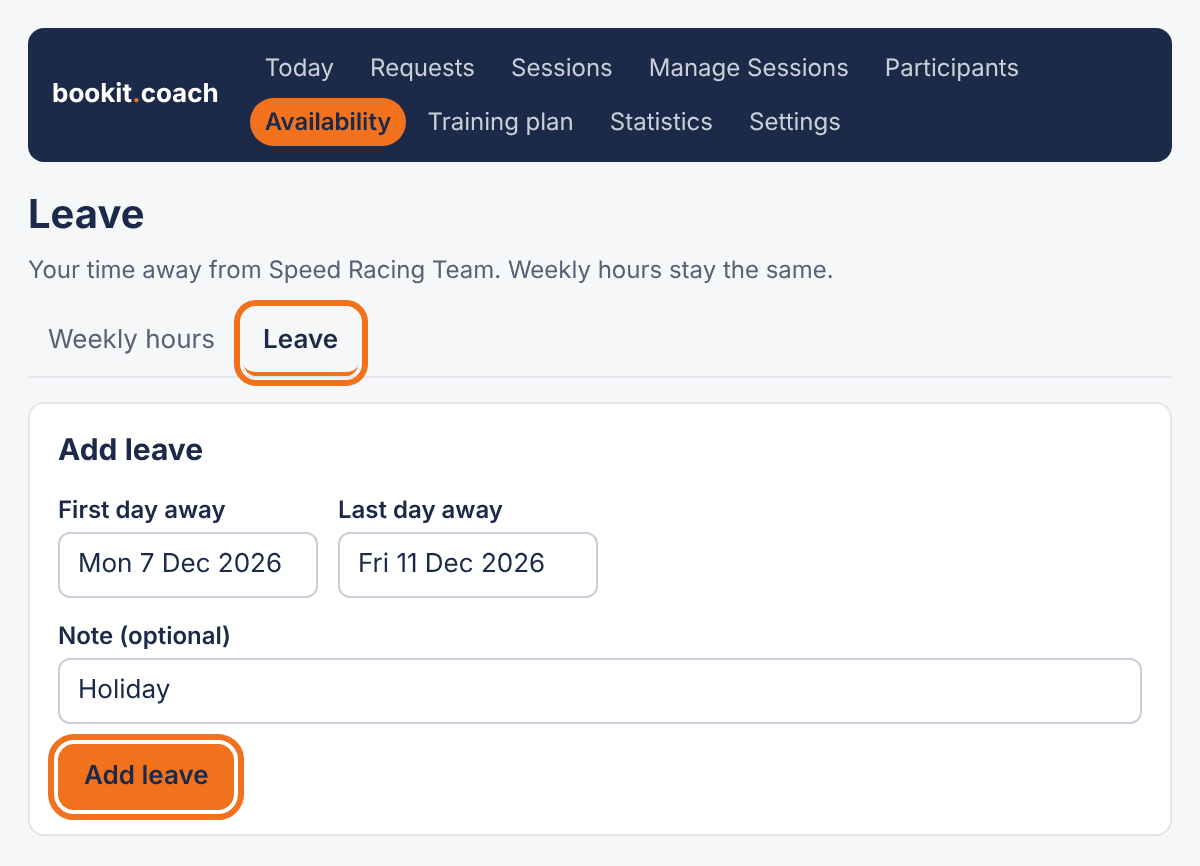
- To add time away, open Leave (next to Weekly hours). Under Add leave, choose the First day away and Last day away, add a Note (optional) and press Add leave.
Good to know
- Families can book only inside your time blocks. A coaching day with no blocks is open all day for bookings your team makes, but families cannot book it themselves.
- Weekly hours stay the same while you are on leave. Families cannot book you on the days you are away.
- If a session is already booked on a day you add as leave, the Leave page lists it. Move or cancel it before the leave starts.
- A note on your leave is seen by your clinic team only.
- Times are in your clinic's time zone.
Still stuck? Write to hello@bookit.coach. Last checked 16 November 2026.