Help › Sessions and people
Answer requests
Confirm, decline or move a family who asked for a session, a time, or sent a message.
OwnerAdminCoachBefore you start
Requests come from your booking link. Owners and admins see every coach's. A coach sees the ones that come to them.
The number beside Requests in the menu is how many are waiting.
- Open Requests. There are three tabs: Contact the clinic for messages, Session requests for people asking to join a session, and Requested times for people asking for a time that is not a session yet.
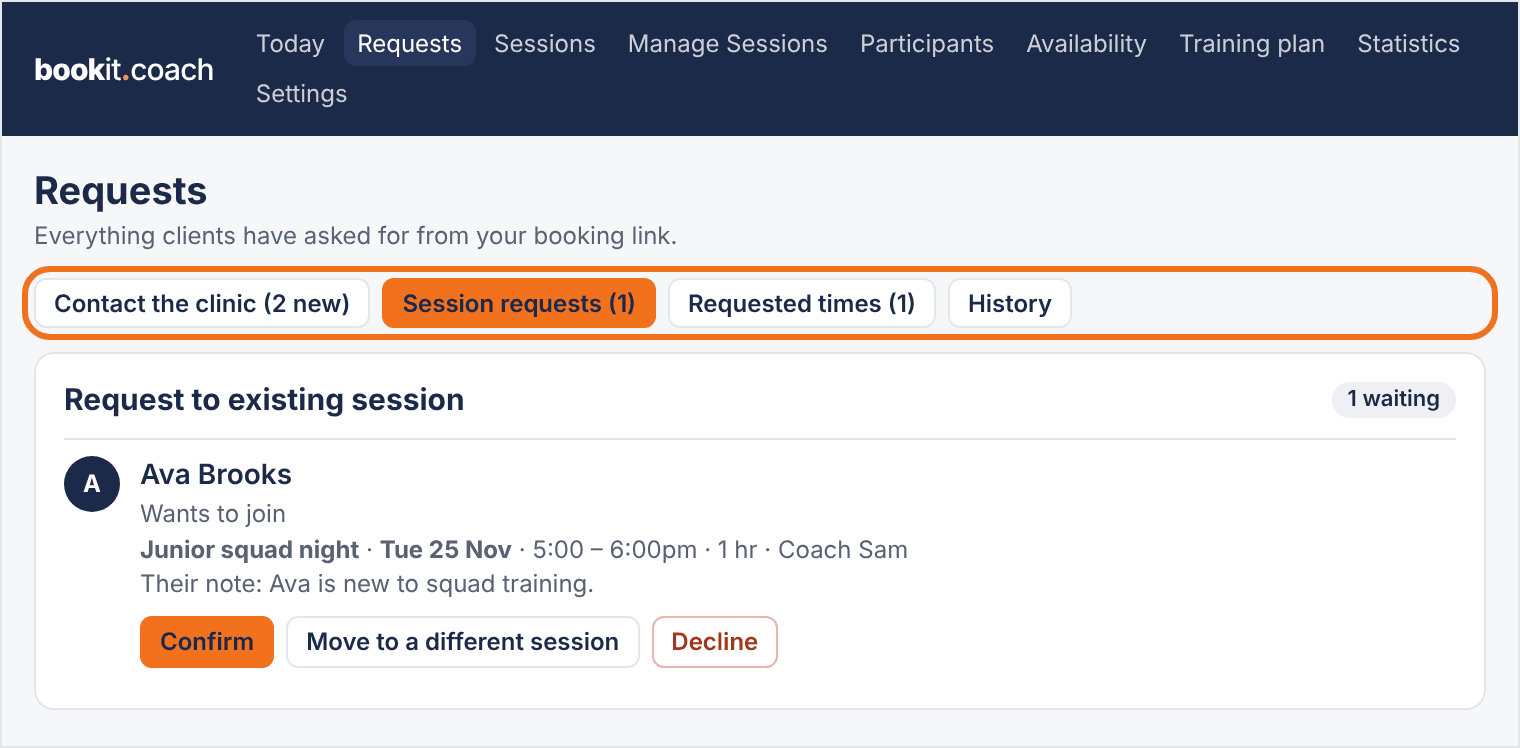
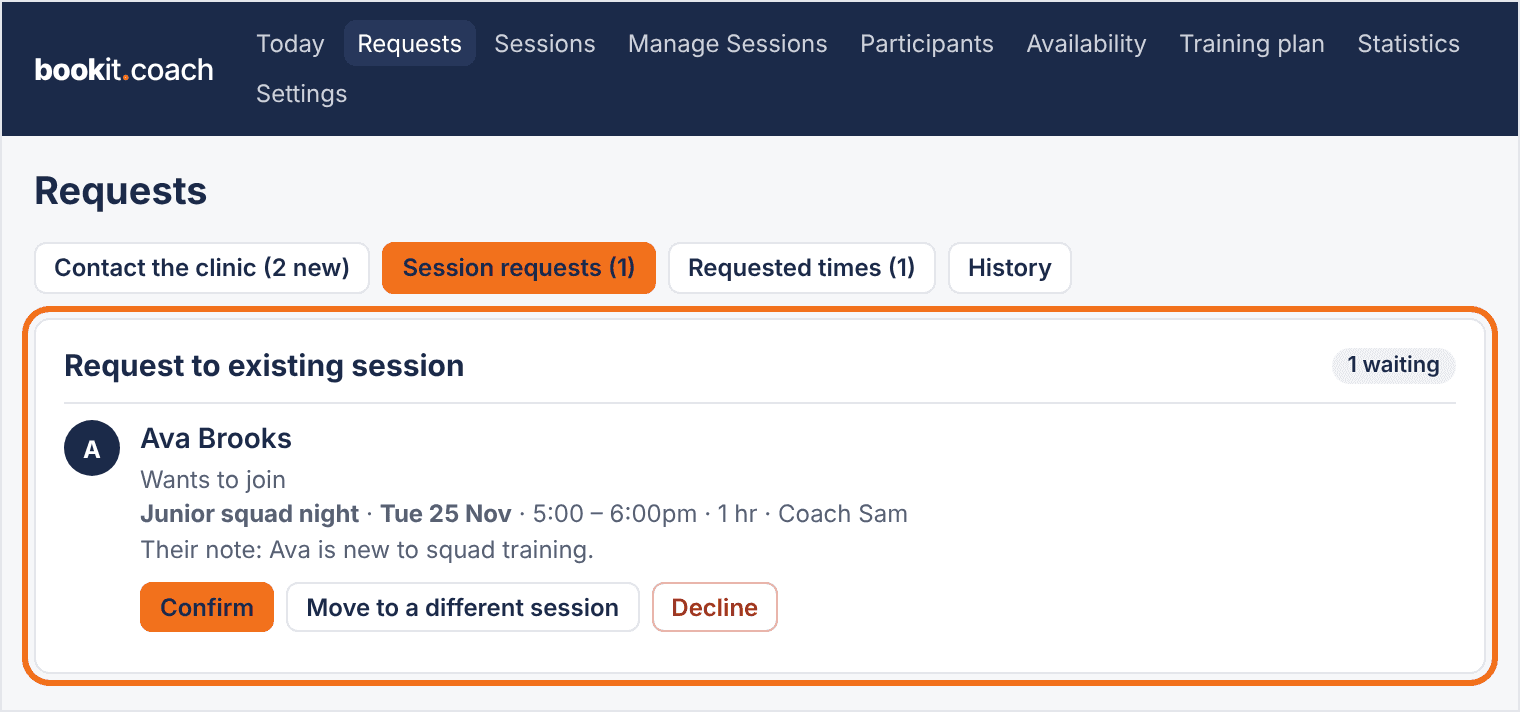
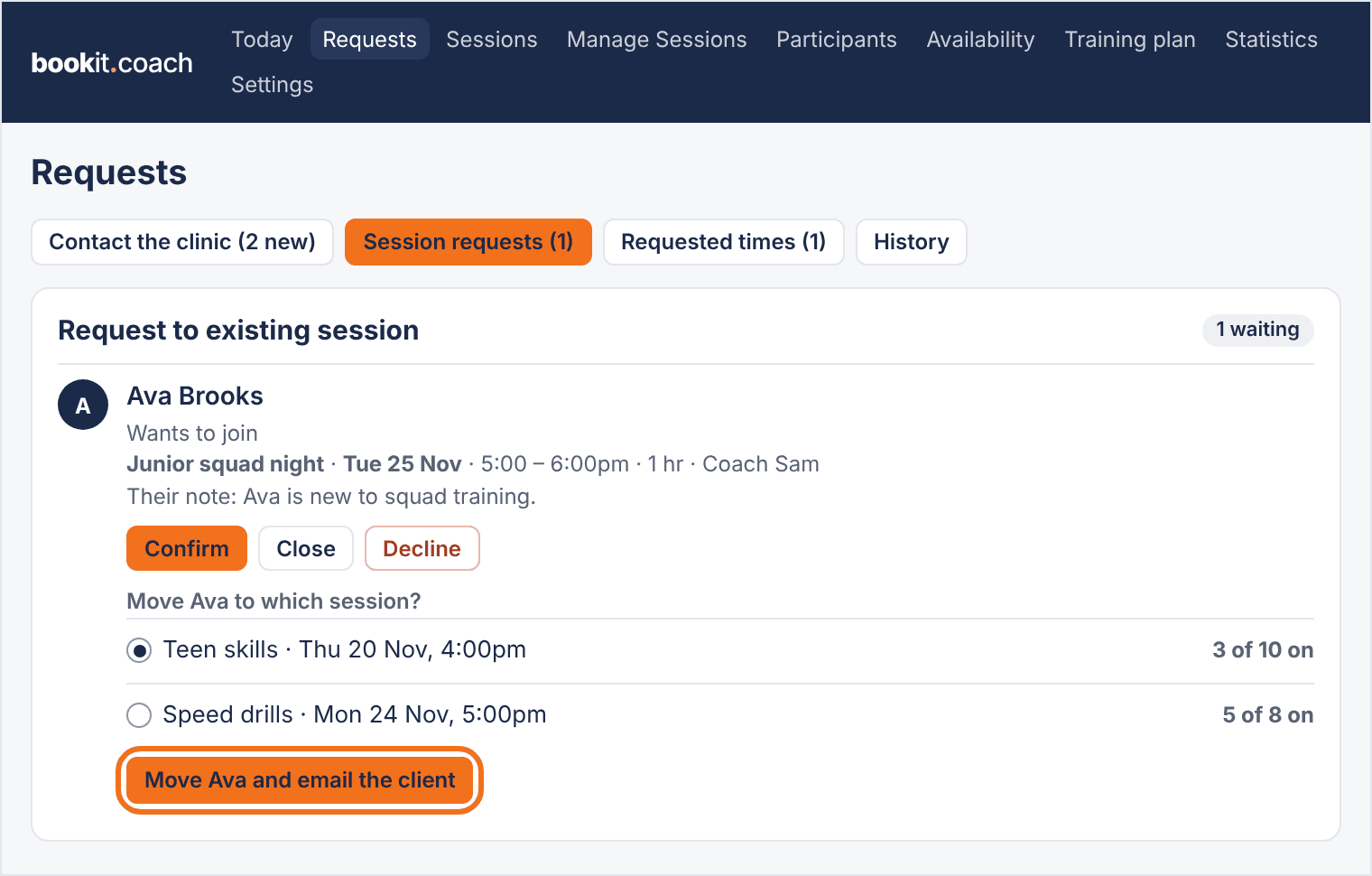
- On Session requests, read who is asking, which session and any note they left.
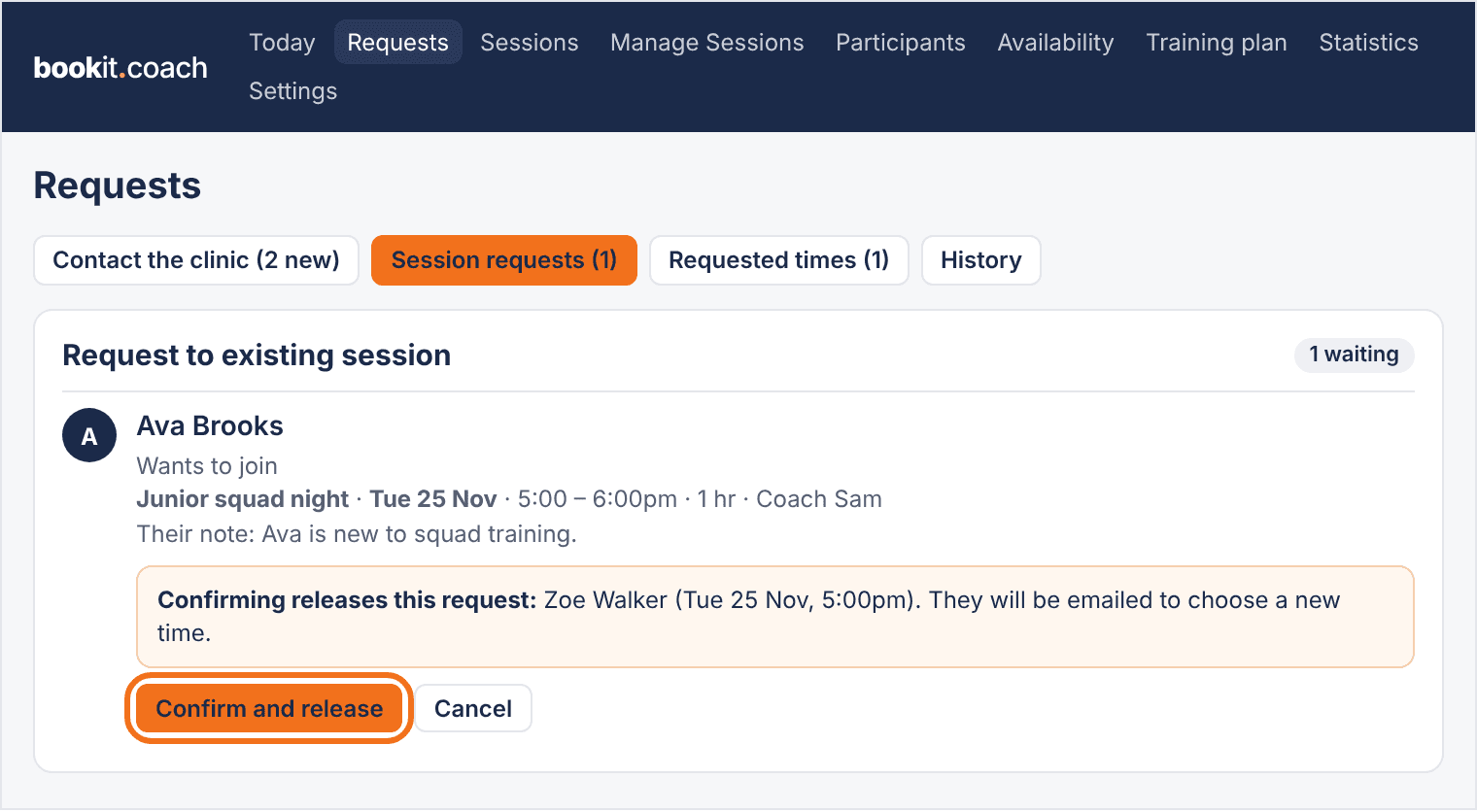
- Press Confirm to say yes. If it would clash with other requests, you are shown which ones, and the button becomes Confirm and release. The others are emailed to choose a new time.
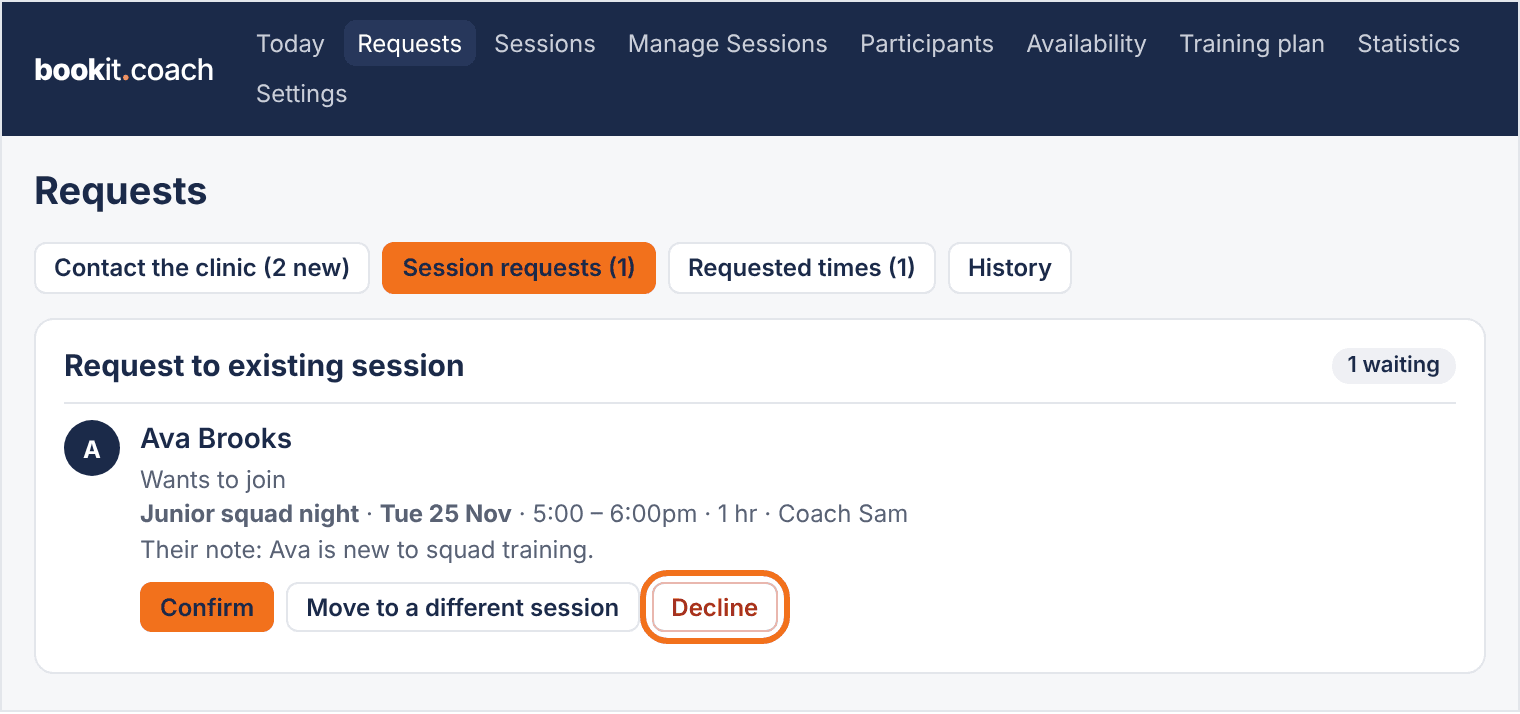
- Press Decline to say no. You are asked to confirm first, and the family is emailed.
- To offer a different session instead, press Move to a different session, choose one and press the button that says Move and the person's first name. The family is emailed and the request closes.
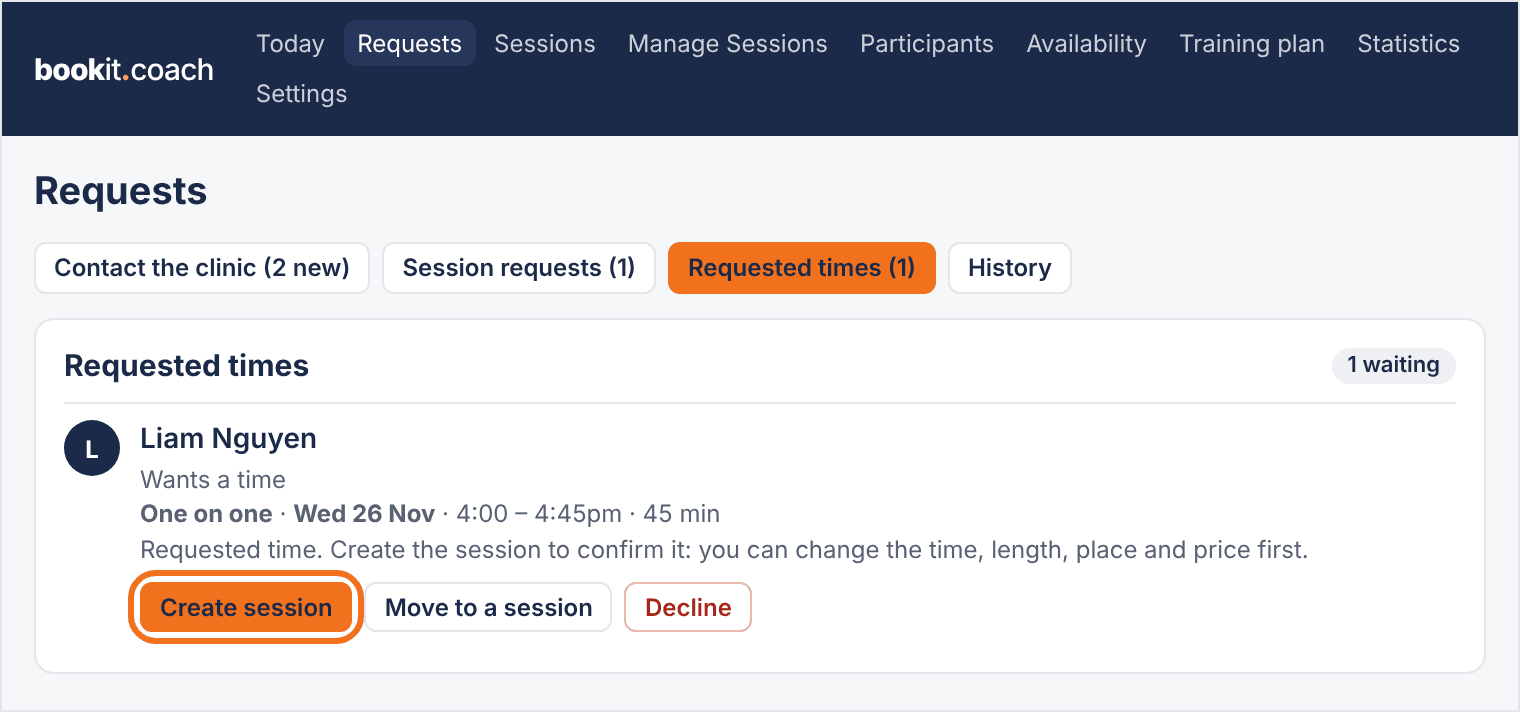
- On Requested times, press Create session. The form is filled in from the request, so you can change the time, length, place and price before you create it. They are confirmed and emailed.
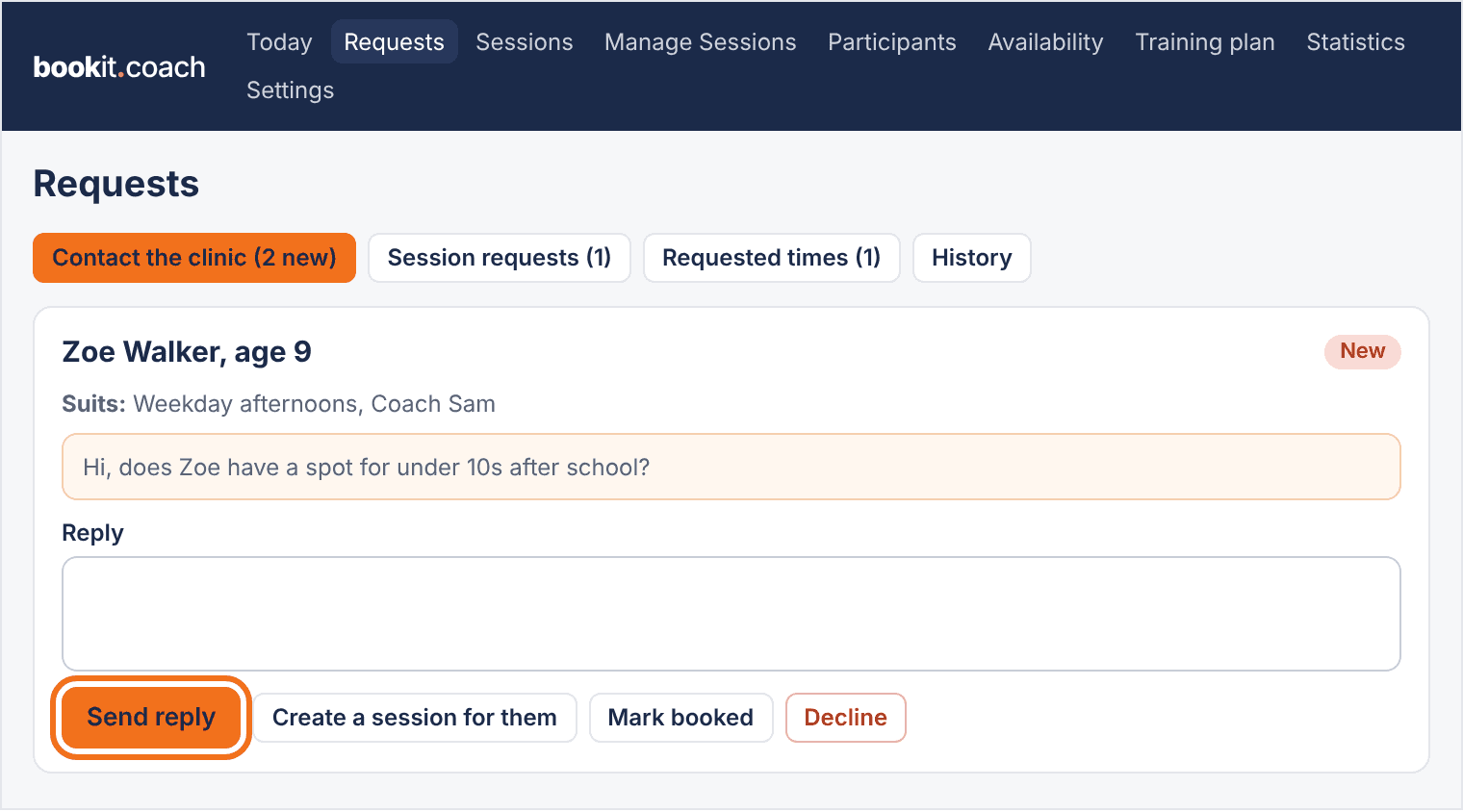
- On Contact the clinic, press Open on a message. Type a Reply and press Send reply, or use Create a session for them, Mark booked, or Decline. A reason on a decline is optional, and is emailed if you write one.
Good to know
- Requests to join an existing session also show on Today.
- If someone asked for a weekly session, you answer all the dates at once. Untick Answer all to answer just the first.
- To answer several messages at once on Contact the clinic, tick them and use Decline ticked or Assign ticked.
- Answered requests move to History.
Still stuck? Write to hello@bookit.coach. Last checked 16 November 2026.