Help › Money, Bookie and your look
Let families pay a series in instalments
Offer paying in full, a deposit, or monthly or fortnightly instalments when families join a weekly series.
OwnerAdminPaid plansBefore you start
Card payments are connected. See Take card payments.
Each series has its own choices, so you can offer instalments on a long series and nothing extra on a short one.
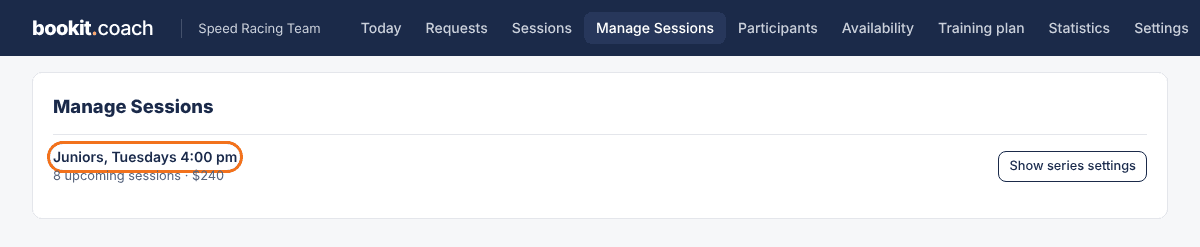
- Open Manage Sessions and press the series title to open Show series settings.
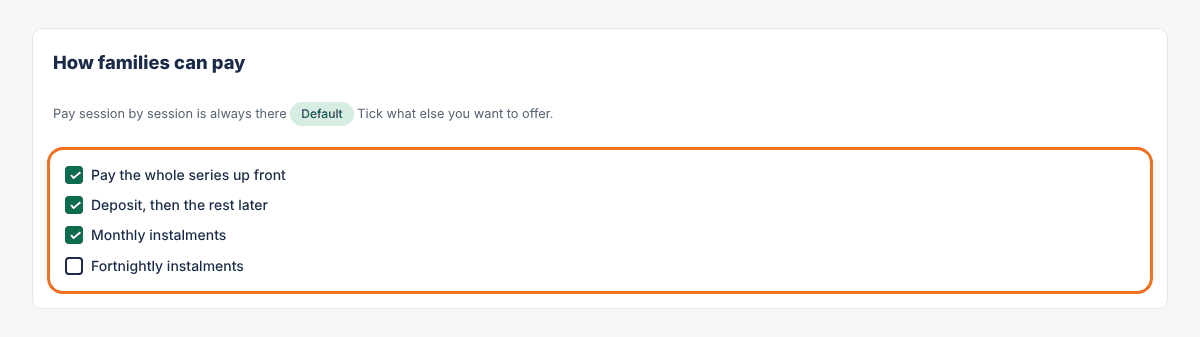
- Find How families can pay. Tick every way you want to offer: Pay per session, Full payment, Partial payment, Monthly payment or Fortnightly payment. None is the default. Pay per session means each session is paid on its own.
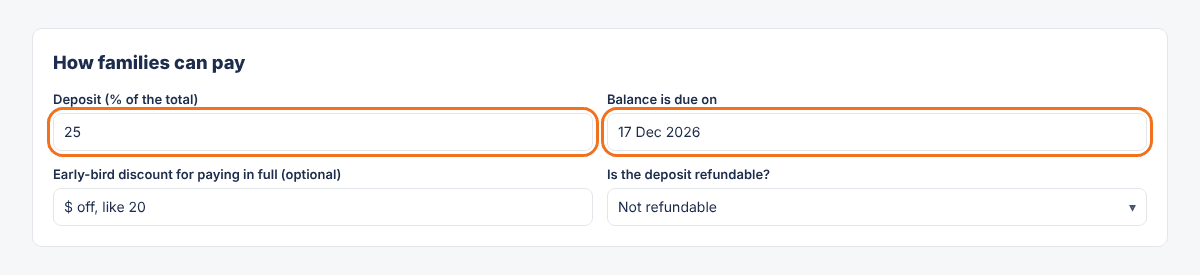
- For a partial payment (a deposit), set Deposit (% of the total) and Balance is due on. Then choose Deposit refundable: Full, Partial (with the percent that goes back) or No, and How many hours before? the first session the deposit can be refunded. Families see this rule before they pay. It is information only: you refund a deposit yourself.
- Press Save series. Families joining the series now see every amount and due date before they confirm. You can also set these ways to pay when you create a weekly series: open Payment on Create a session, enter the price, and they appear under it.

- Families pay the first amount by card straight away. Three days before each later payment we email them a pay link. They also find it at the top of My bookings › Payments, under Session Due.

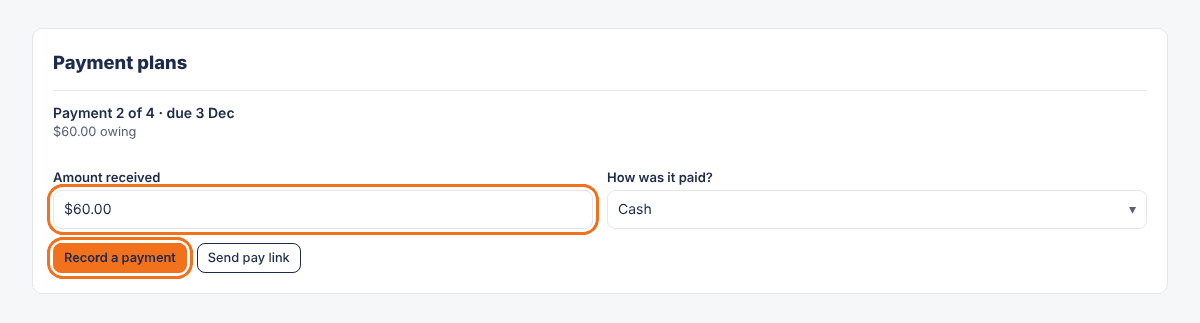
- If a family pays you by cash, PayID or bank transfer instead, open Participants › their name › Payment plans, choose the payment, type the amount and press Record a payment.
Good to know
- You can untick Pay per session. Families must then choose one of the other ways to pay before their place is confirmed, so if you take cash or PayID, leave it ticked. At least one way to pay must stay ticked, and card payments need to be connected first.
- Staff adding a participant by hand are never asked to choose a way to pay.
- An early-bird discount set on a series before this change keeps working until you next change that series' ways to pay. The field is no longer shown.
- We never charge a family's card automatically. They pay each link themselves.
- A plan never blocks a booking. On Today, a part-paid session shows Owes $X.
- If a family cancels a session they already paid for, or you cancel it, what they paid for it stays as Session credits with you. Sessions they hadn't paid for simply come off what they owe.
- Send pay link on a participant's plan emails a payment reminder straight away.
- Card payments on a plan carry the usual 1% fee. Recording a cash payment, or using Session credits, has no fee.
Still stuck? Write to hello@bookit.coach. Last checked 28 November 2026.