Help › Sessions and people
Change, move or cancel a session
Change one date or every later one, put in a stand-in coach for a day, or cancel.
OwnerAdminBefore you start
Everyone booked on a session is emailed when you change its time, coach or place, or cancel it.
- Open Manage Sessions and find the session. A weekly series has one row for each upcoming date underneath its title.
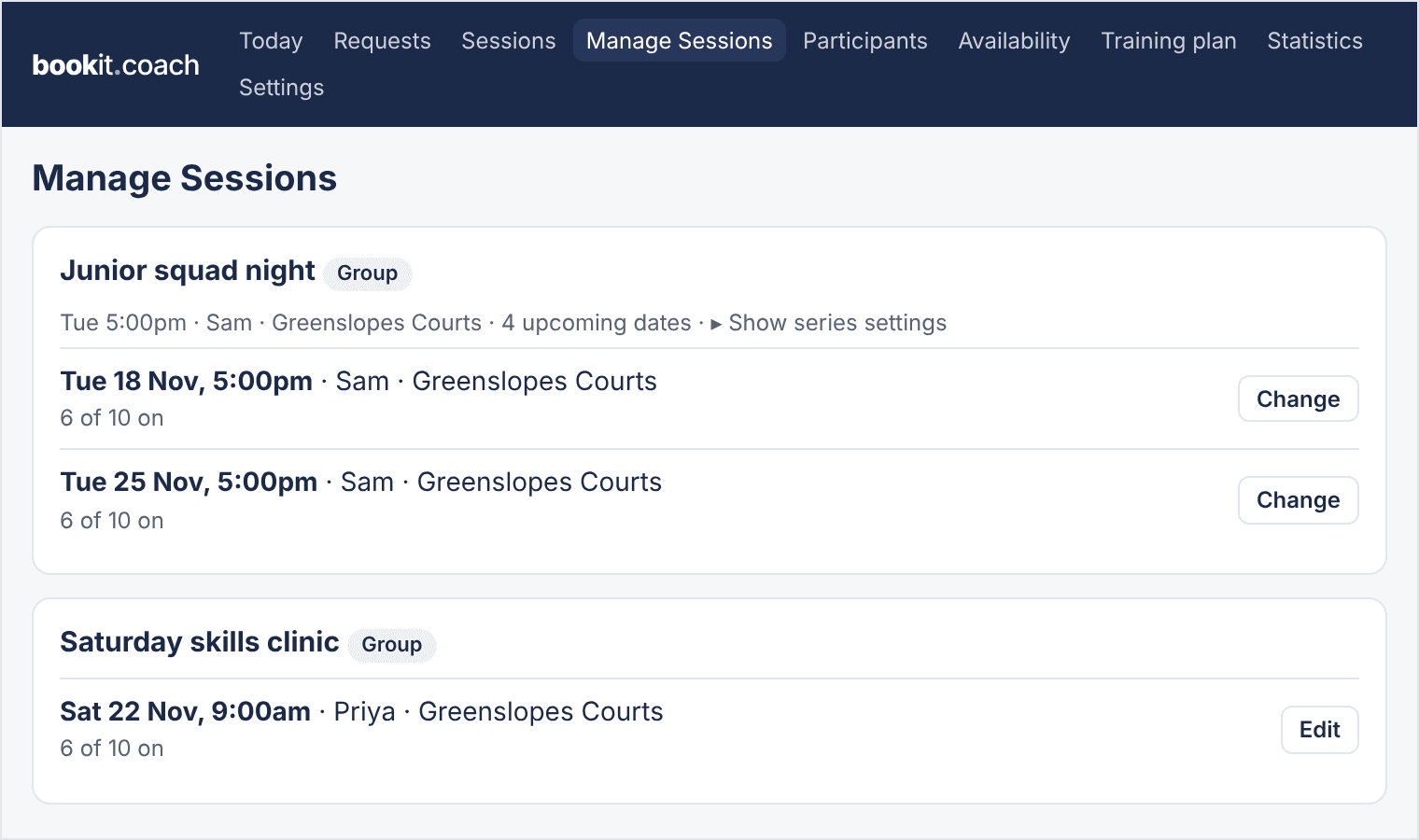
- To change a one-off session, press Edit. To change one date of a series, press Change on that date's row.
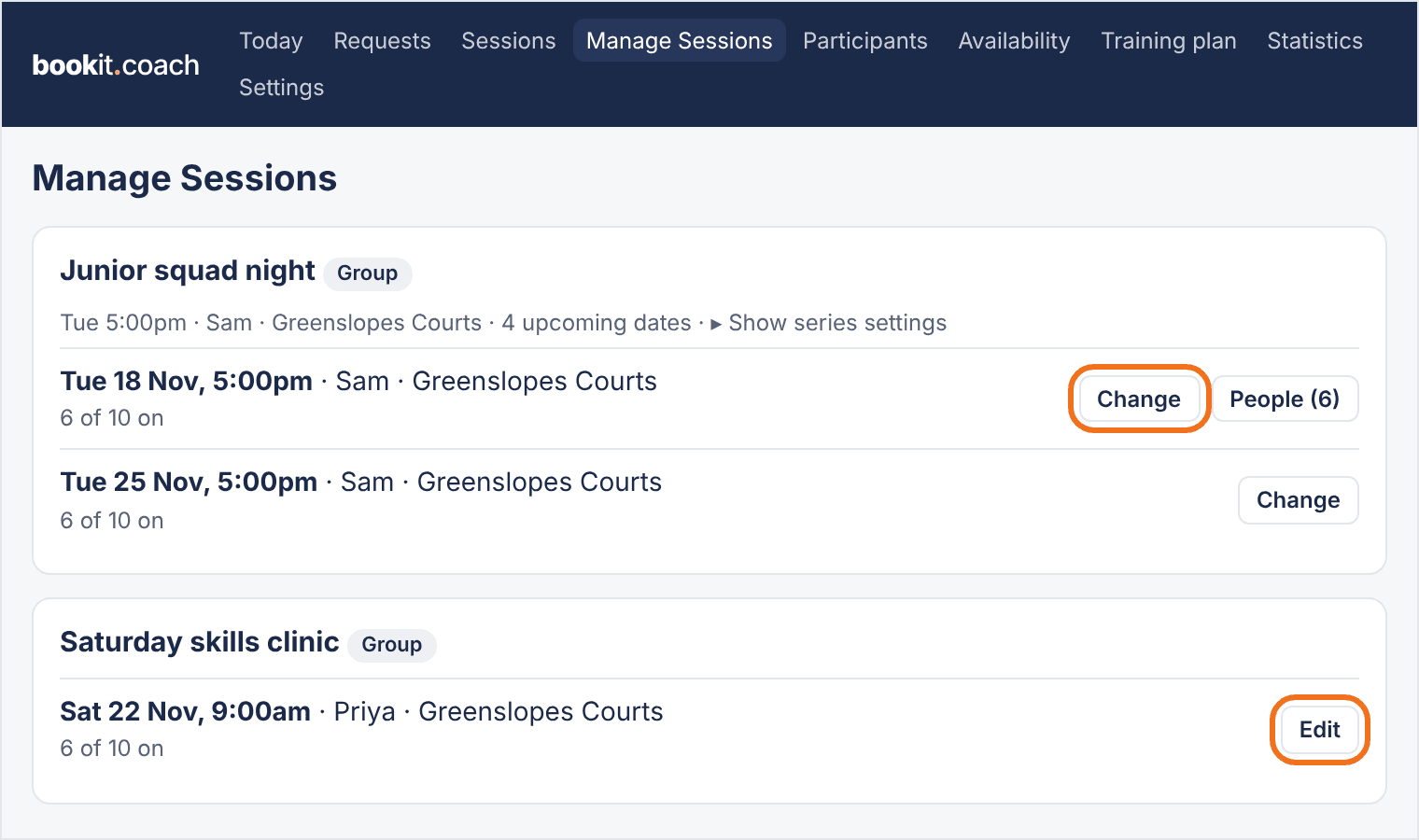
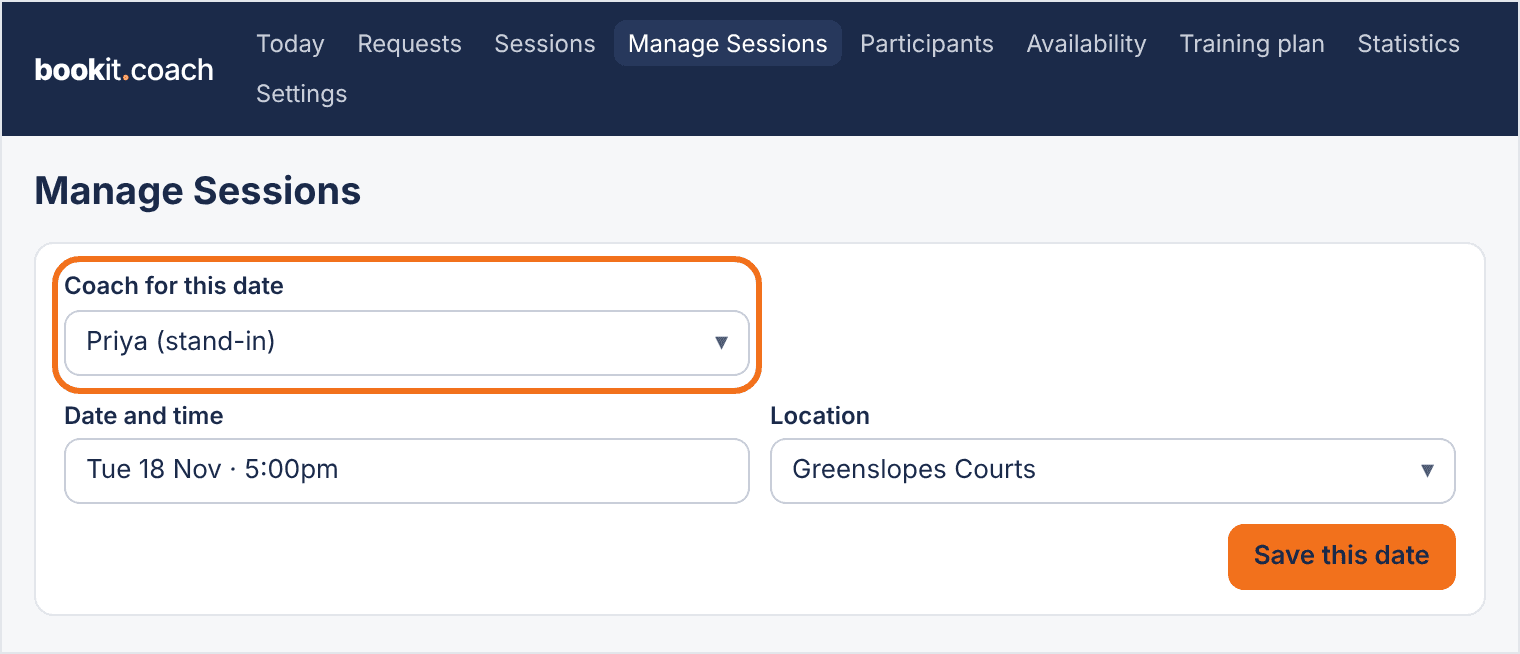
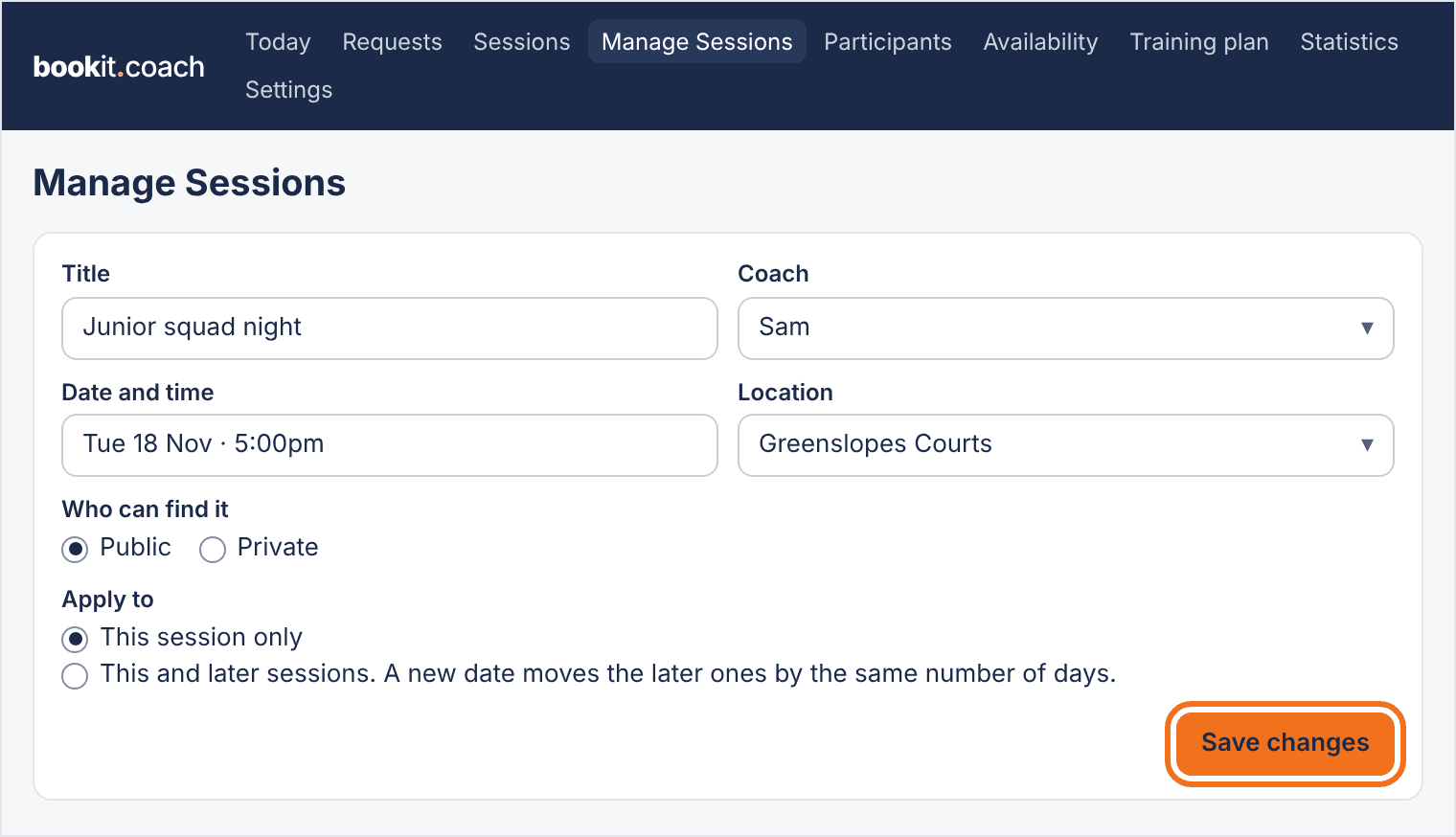
- Change what you need. Details holds the Title, the date and time, the Coach and the Location; Booking holds Who can find it, Bookings close, and for a group When the group is full; Cancelling and makeups holds Families can cancel. On a series these apply to every upcoming date, so a single date's Change box does not have them. On a single date of a series, the coach box is called Coach for this date, so this is how you put in a stand-in for one week.
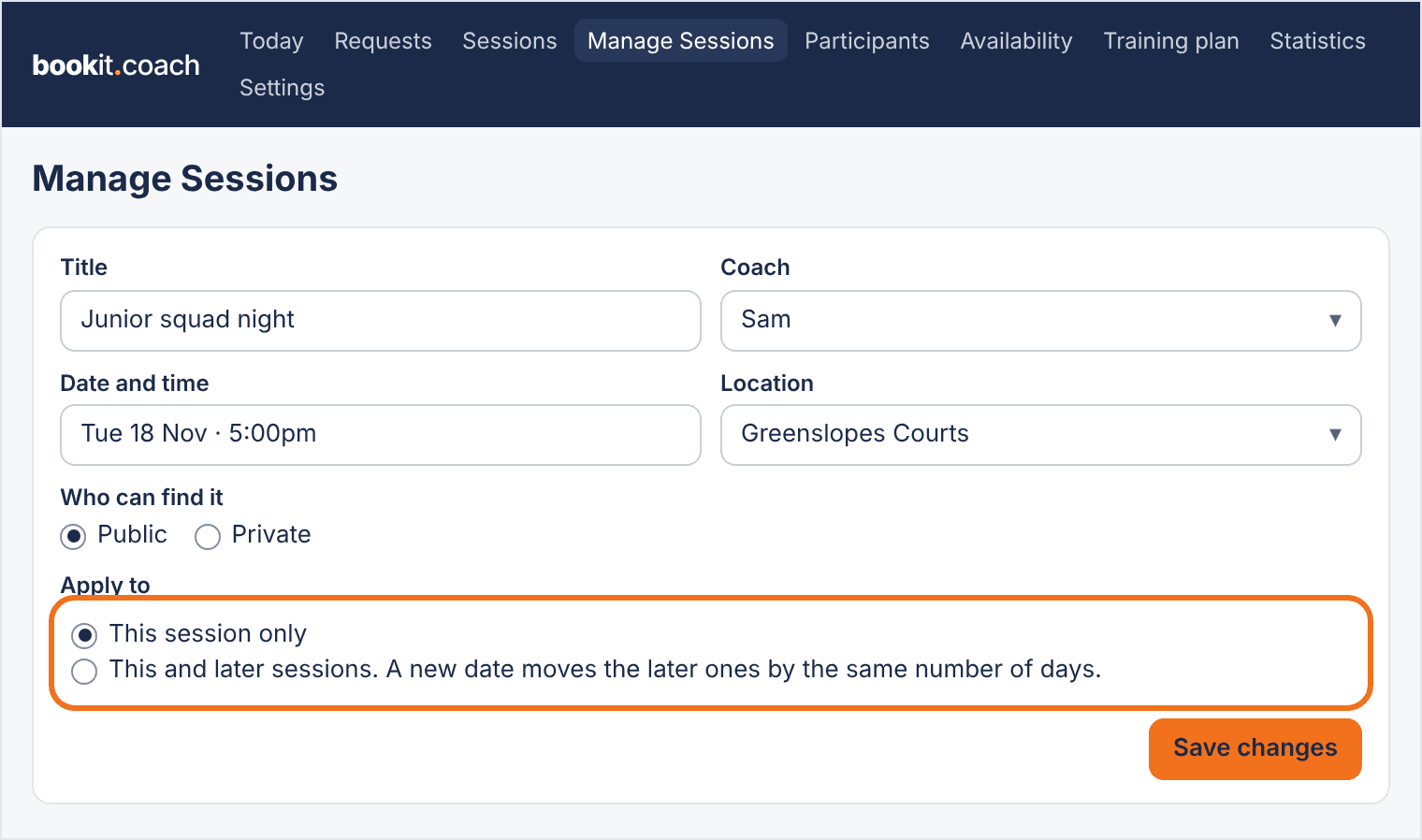
- On a series, choose Apply to: This session only, or This and later sessions. A new date moves the later ones by the same number of days.
- Press Save changes. On a single date of a series, press Save this date.
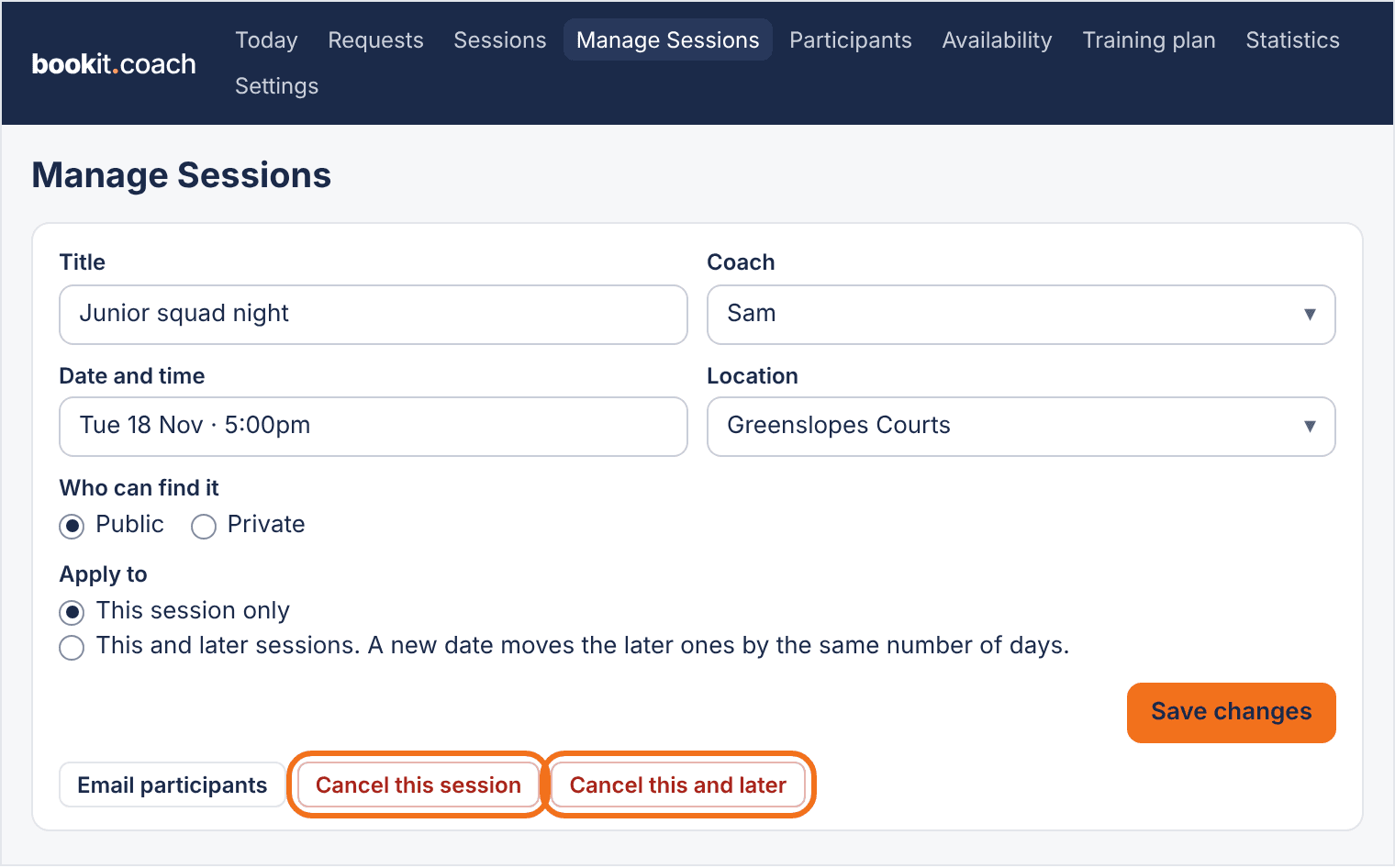
- To cancel, press Edit (or Change), then Cancel this session. A series also has Cancel this and later. You are asked to confirm before anything is cancelled.
Good to know
- To change something for every upcoming date of a series, press the series title to open Show series settings, change it there and press Save series. A date with its own coach, place or time keeps it.
- The series settings also hold the Group size, so you can open more places on every upcoming date. Lowering it below the number already on a date removes nobody: that date just reads as full if its rule says Stop bookings or the waiting list.
- A date you change shows changed for this date or moved beside it, so you can see which dates are different.
- A cancelled date stays on Past and cancelled, and in the series it shows as No session.
- If you take card payments and leave Refund single card payments automatically ticked when you cancel, the message afterwards says how much was refunded by card. If a payment could not be refunded, it says how many, even when others went through, so you can refund those in your Stripe account. When a family cancels and their refund doesn't go through, they are asked to contact you.
- You cannot change the type or the length of a session. Cancel it and create a new one instead.
- On the Sessions calendar you can also drag a session to a new time, or press a session and choose Edit or Cancel session.
- Moving a session, or changing its coach, onto a time the coach is already busy shows the same Book anyway box. Owners and admins can book it anyway with a reason; the coach is emailed. This covers one session at a time. Changing this and later dates still refuses a clash.
- On a paid plan, the series settings also have How families can pay. Tick the ways you want to offer for the whole series: Pay per session, Full payment, Partial payment, Monthly payment or Fortnightly payment. Press Save series to keep them. Untick Pay per session and families must choose one of the other ways before their place is confirmed.
- At a clinic with makeups on, cancelling one date of a one on one, or of a group with people on it, also offers Let the family choose a new time (one on ones only), I'll set the new time or No makeup. See Offer makeup classes.
Still stuck? Write to hello@bookit.coach. Last checked 28 November 2026.