Help › Sessions and people
Use the Sessions calendar
See the week or the day, add a session by dragging, and open the people on it.
OwnerAdminCoachBefore you start
Owners and admins see every coach's sessions. A coach sees their own.
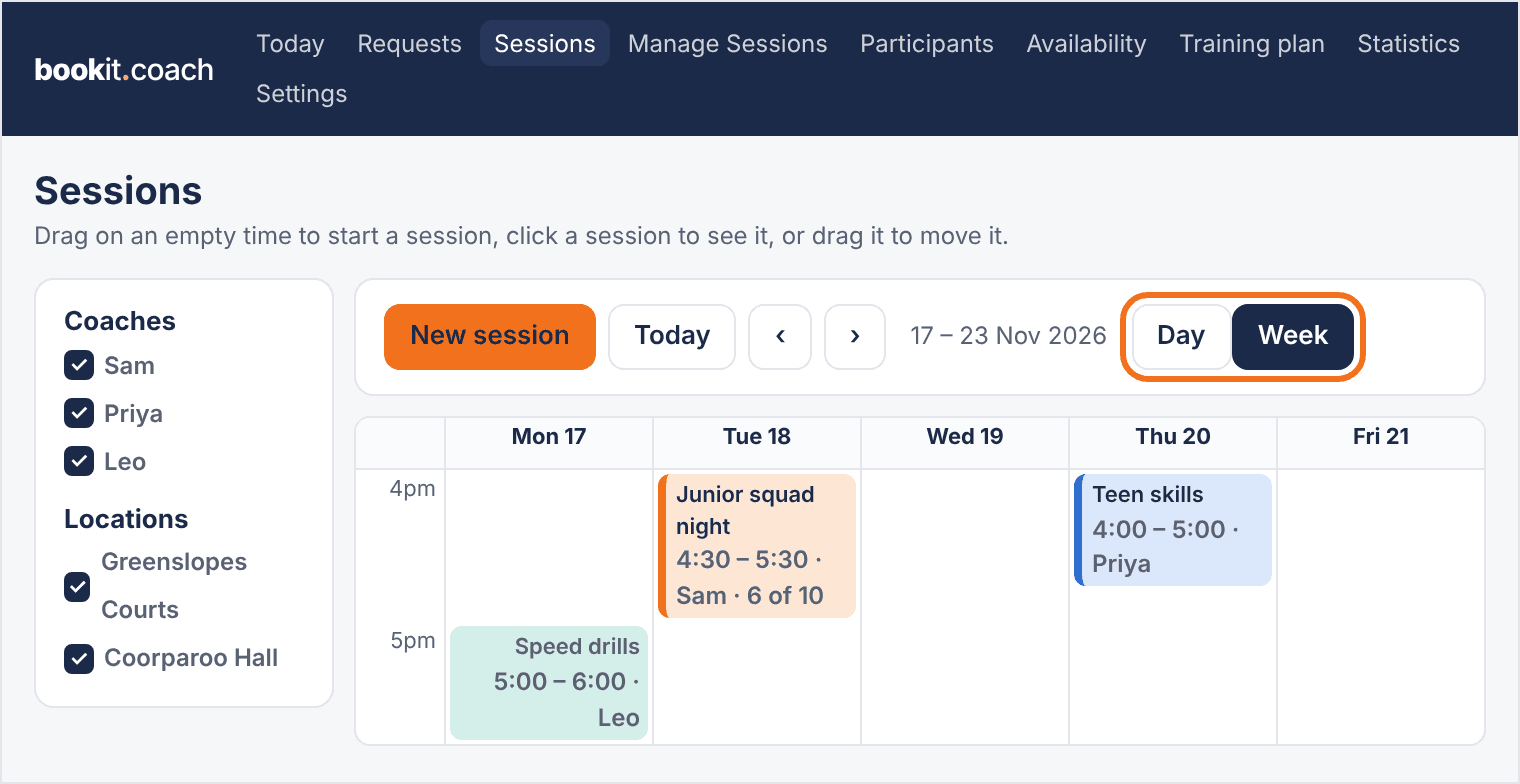
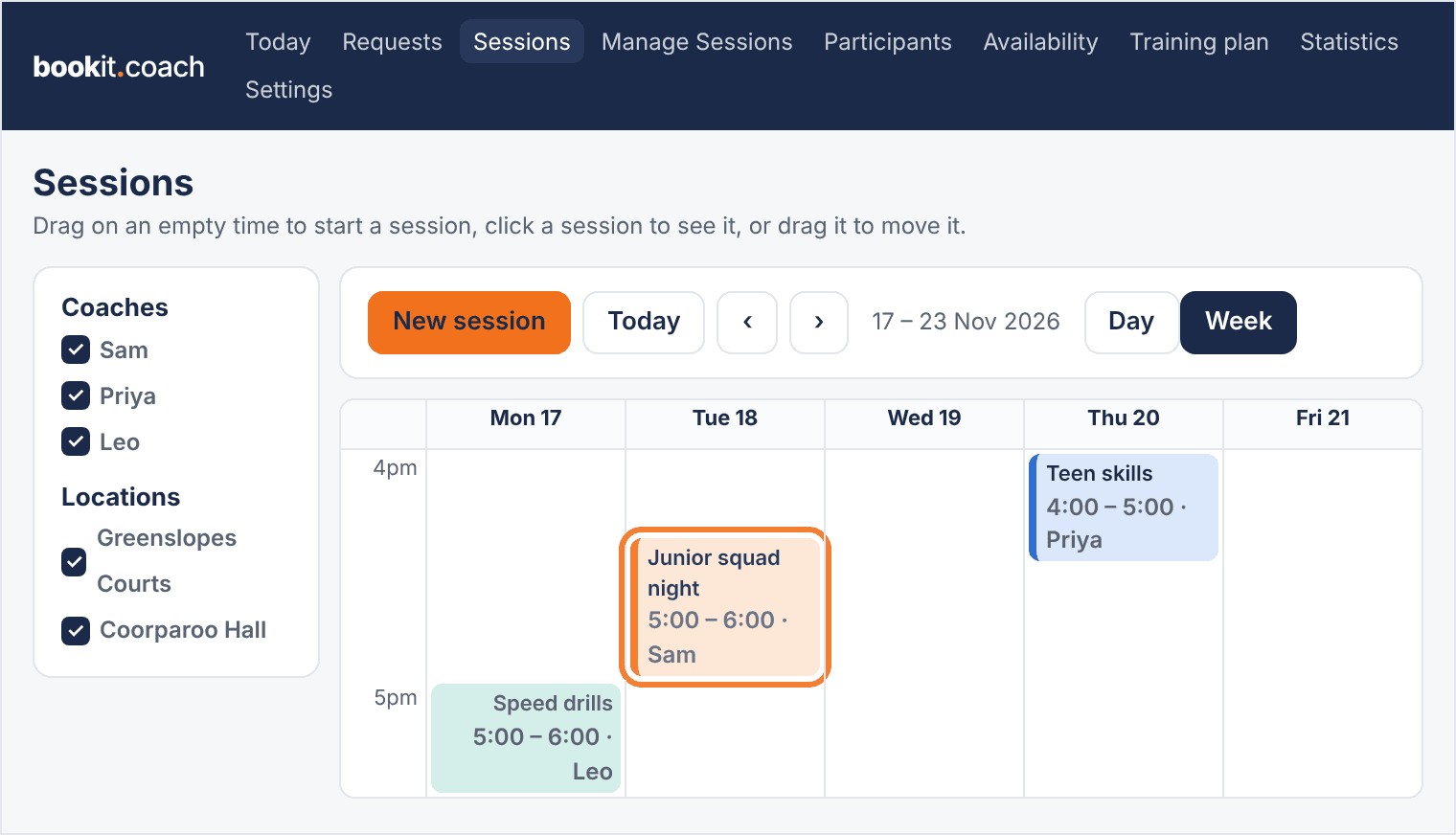
- Open Sessions. On a computer you see the week. Use Day and Week to switch, Today to jump back, and the arrows beside it to go to the next or last day or week.
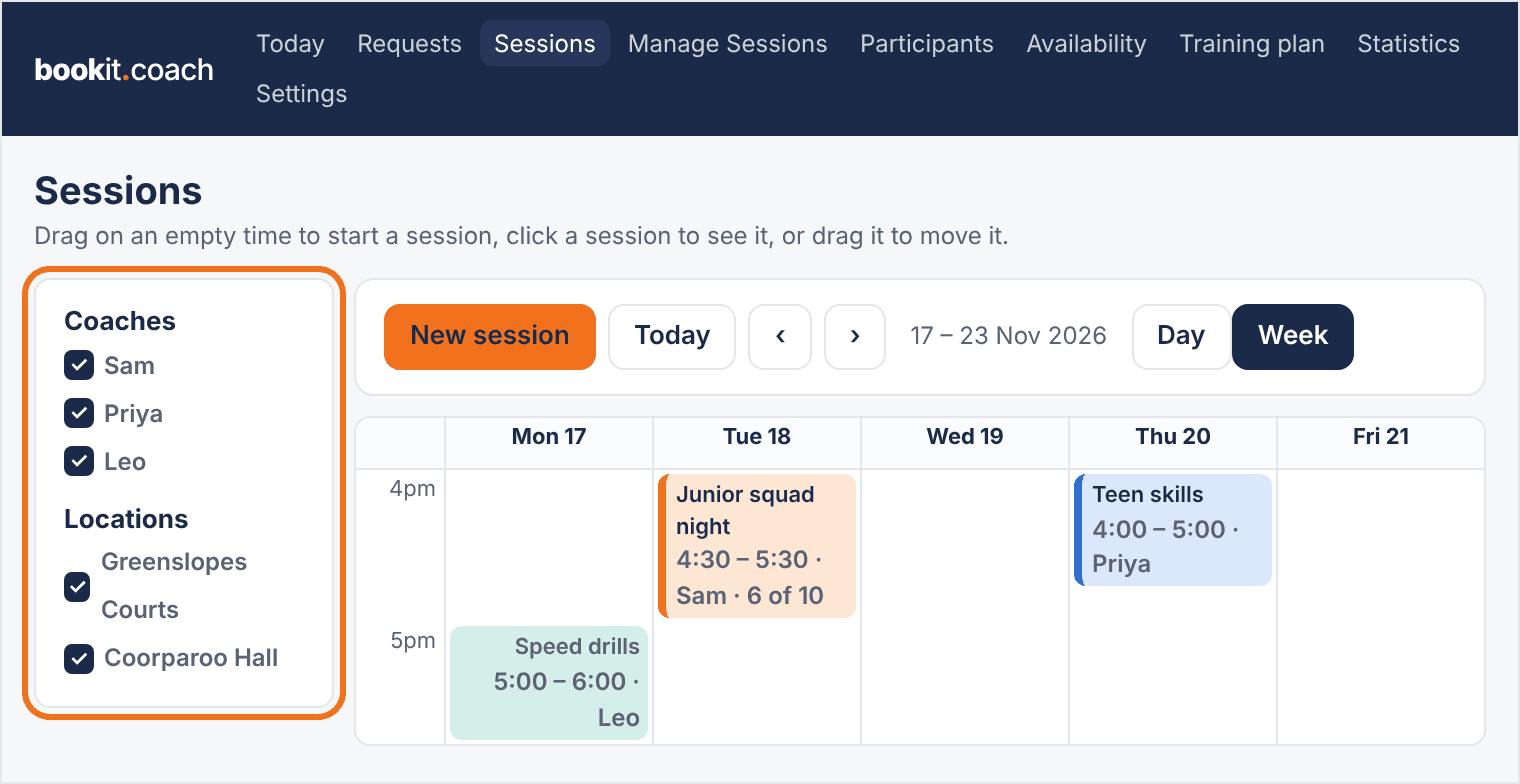
- To show fewer sessions, untick a coach under Coaches on the left. If you have more than one place, Locations works the same way.
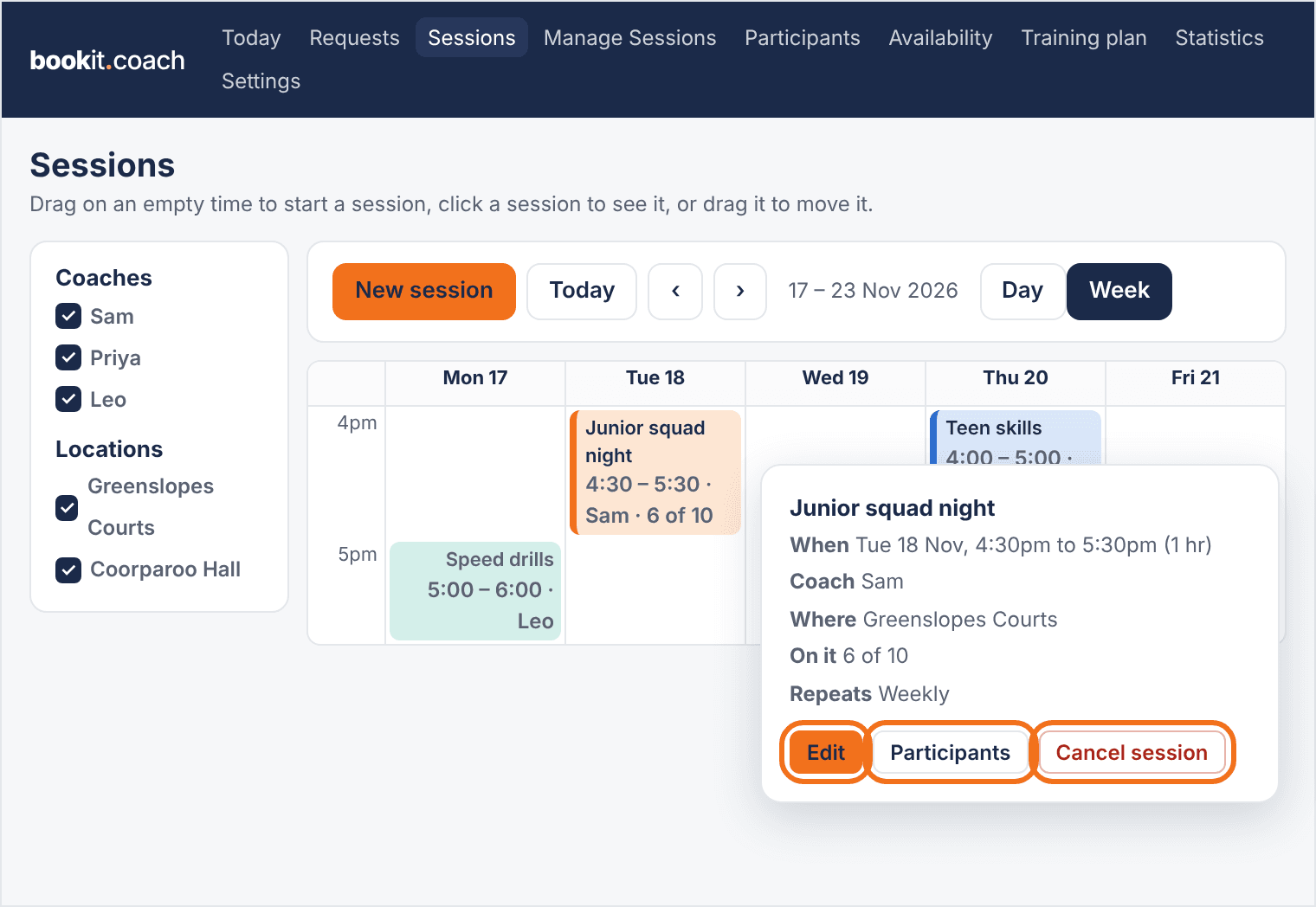
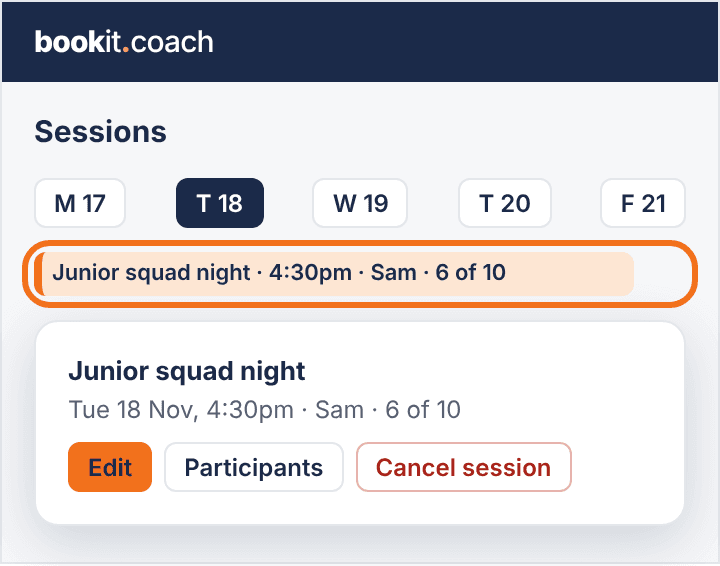
- Press a session to open its details: when, coach, place and how many are on it. From there you can press Edit, Participants or Cancel session. On a weekly series, owners and admins on a paid plan can also pick or change its Training plan in Edit; it applies to the whole series.
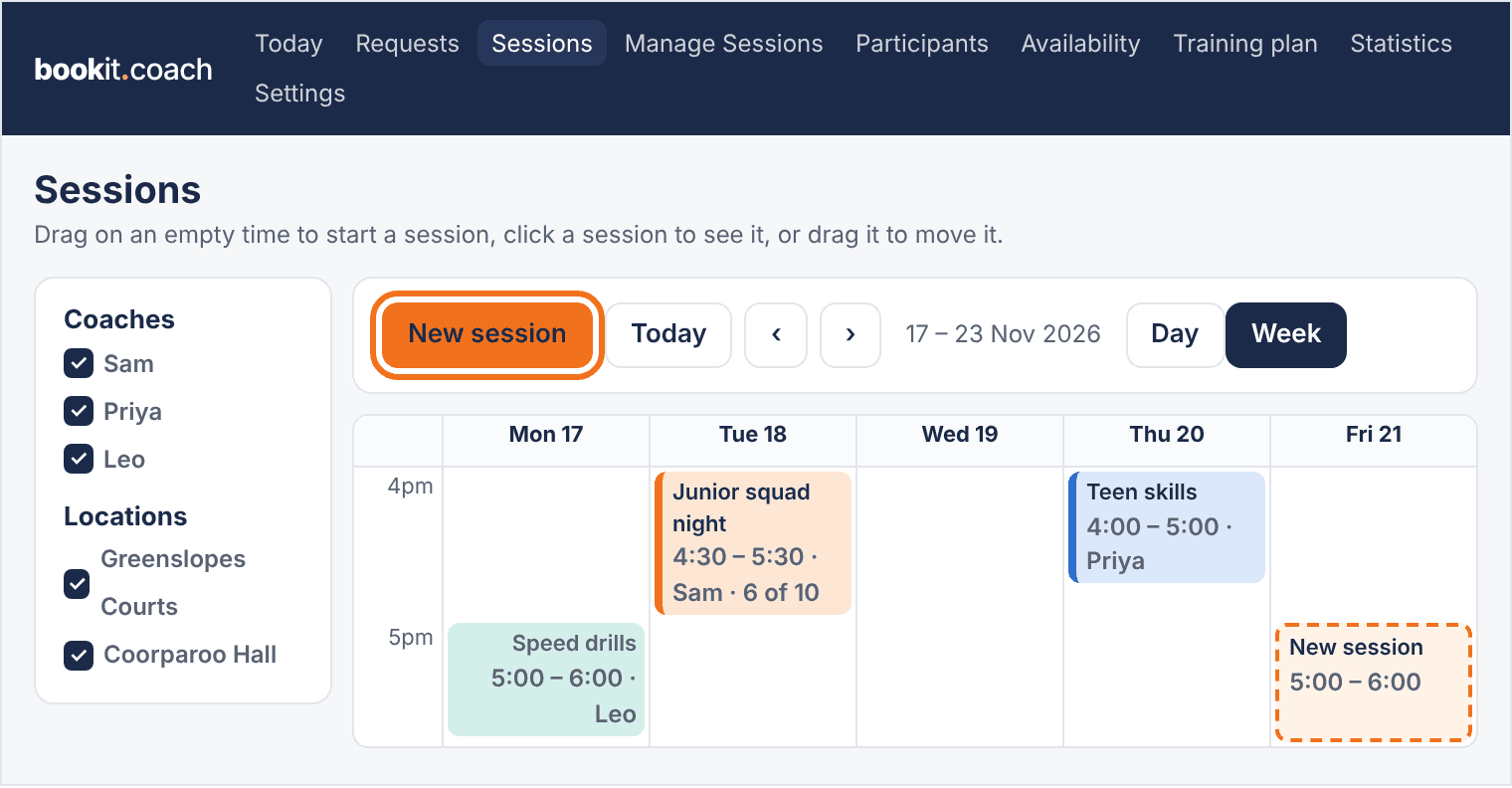
- To start a new session, press New session, or drag down on an empty time. Times snap to 15 minutes. The panel has the same five sections as Create a session: Details, Booking (with Bookings close and, for a group, When the group is full), Cancelling and makeups (with Families can cancel), Payment and Training plan. Fill them in and press Create session. Owners and admins can tick Recurring and, on a paid plan, pick a Training plan (optional): the series keeps its own copy.
- To move a session to another time, drag it. On a series you are asked whether it is this session only or this and the later ones.
- On a phone you see one day at a time. Tap a day in the strip along the top, then tap a session to see it. Edit, Participants and Cancel session are in the box that opens.
Good to know
- Owners and admins see Move and Remove beside each participant. To move someone, drag the ⋮⋮ onto another session, or press Move and press the session. Moving someone needs a tablet or a computer.
- A coach can create, edit and cancel sessions here only if the owner has turned on Coaches can create their own sessions in Settings › Team.
- Prefer a list? Manage Sessions shows the same sessions with their participants, emails and booking links.
- A session the owner or an admin booked twice on purpose gets a dashed red edge and the word Overlap on both blocks. Press either one to see who booked it anyway and why. Moving or cancelling either session clears the mark.
- Public holidays for your state show as a label in the day's header (for example Australia Day with Public holiday under it). The day is otherwise normal: nothing is closed and families are offered times as usual. If you want the clinic shut that day, add it under Closed dates. The list covers state-wide days only, not local show days, and clinics outside Australia see none.
- With more than one location, Colour by switches the block colours between Coach and Location. A session that would take its venue over its Spaces shows Location full with a dashed red edge, and a session left on one of its location's closed dates shows Location closed. The rest of that day is normal.
Still stuck? Write to hello@bookit.coach. Last checked 28 November 2026.